Automatic follow-ups, reminders and review requests
Let Hello to Paid check in on unanswered quotes, remind customers about visits and ask for reviews, by email, on its own.
Included on the Pro plan and up. Compare plans
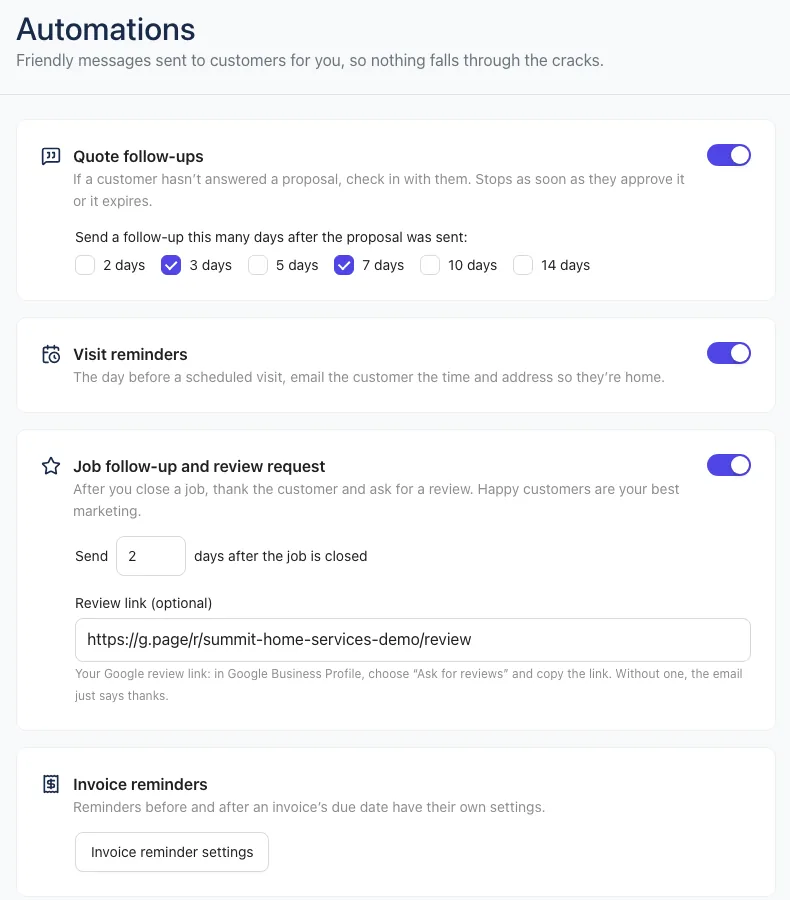
Automations send friendly emails to your customers for you, so nothing falls through the cracks. Turn each one on or off in Settings → Automations.
What you can turn on
| Automation | What it does |
|---|---|
| Quote follow-ups | If a customer hasn’t answered a quote, checks in with them. Pick the days after sending: 2, 3, 5, 7, 10 or 14. Stops as soon as they approve it or it expires. |
| Visit reminders | The day before a scheduled visit, emails the customer the time and address so they’re home, with a link to their Client Hub. |
| Job follow-up and review request | A set number of days after you close a job (0 to 14), thanks the customer and asks for a review. Paste your Google (or other) review link so they can leave one in a tap; without one, the email links to their Client Hub instead. |
| Invoice reminders | Reminders before and after an invoice’s due date. These have their own settings: see Invoice reminders. |
Set them up
- Go to Settings → Automations.
- Switch on the automations you want.
- For Quote follow-ups, tick the days you want a follow-up sent.
- For Job follow-up and review request, choose how many days after the job is closed, and add your review link. To get your Google link, open your Google Business Profile, choose Ask for reviews and copy the link.
- Click Save at the top right.
Only people whose role includes Business settings (Owners, for example) can edit this page.
“On my way” messages
“On my way” isn’t automatic: your crew sends it by hand from a visit. On the web, open the visit and click Send “On my way”. In the iPhone app, open the visit, tap On my way, and pick how soon you’ll arrive. The customer gets an email with your arrival time, and you can also send it as a text from your phone.
Who the emails come from
Customers see your business name as the sender, and when they hit Reply, their answer goes to your company email (set in Settings → Branding), not to Hello to Paid.
If a customer says they never got one, see My customer didn’t get the email.