Invoice reminders
Send polite payment reminders automatically before and after an invoice's due date, or send one yourself.
Included on the Pro plan and up. Compare plans
Stop chasing payments. Turn on automatic reminders once, and every unpaid invoice gets a short, friendly email with a link to pay. Reminders stop the moment the invoice is paid.
Turn on automatic reminders
- Go to Settings → Invoicing. (Or click Reminders on the Invoices page.)
- Switch on Send automatic reminders.
- Under When to send them, tick the reminders you want: 1 week, 3 days or 1 day before the due date, on the due date, and 1 day, 3 days, 1 week, 2 weeks or 30 days after.
- Optionally add a Personal note, like "Questions? Call us at (410) 555-0100." It's added to every reminder, including ones you send by hand.
- Click Save.
The page shows an example schedule for an invoice due two weeks from today, so you can see exactly when emails would go out.
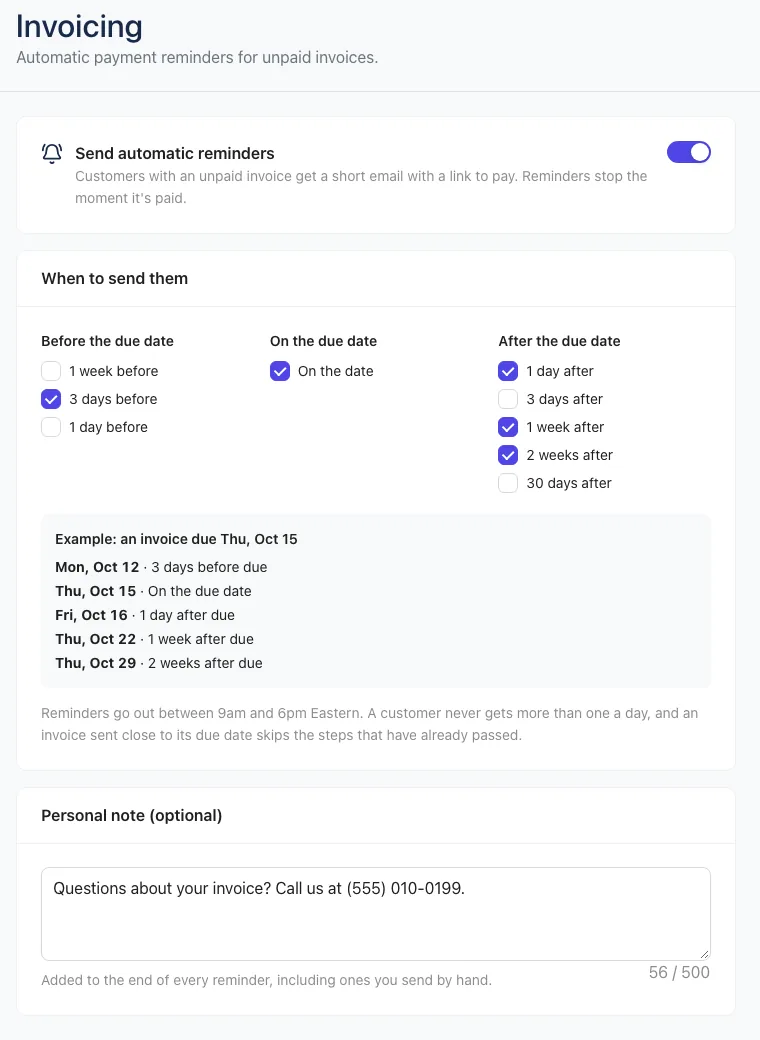
Only people whose role includes Business settings (Owners, for example) can change these settings. Others can see them.
Text reminders too
If your business has the texting add-on, a Text reminders box appears. Tick Also text reminders to customers with a mobile number and each reminder also goes out as a short text from your business number, with the pay link. Customers can reply STOP. It's off unless you turn it on.
How reminders are sent
- Only invoices that are sent (or partly paid), have a balance and have a due date get reminders.
- The customer needs an email address.
- Reminders go out between 9am and 6pm Eastern, and never more than one a day.
- The wording changes with timing: a friendly reminder before, "due today" on the day, and "past due" after.
- If you send an invoice close to its due date, reminders for dates that have already passed are skipped.
See and pause reminders on one invoice
Open the invoice. The Reminders card shows:
- When the next automatic reminder will go out
- Every reminder sent so far, with the result (sent, failed or skipped)
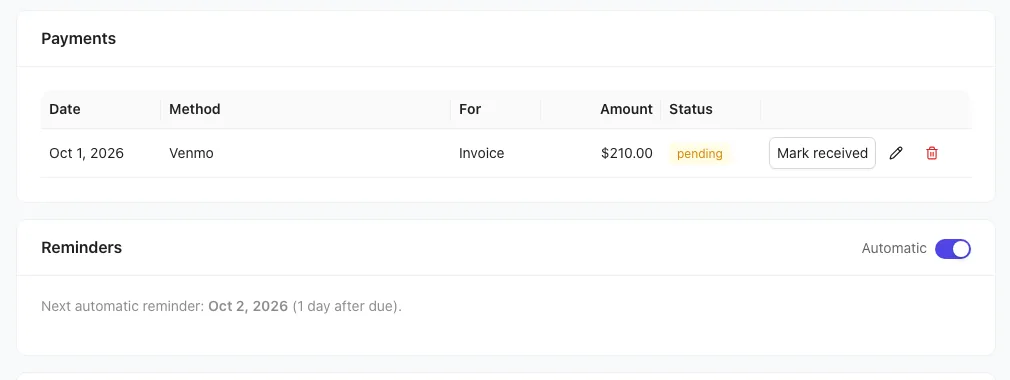
To stop reminders for just this invoice, for example if your customer has promised to pay, turn off the Automatic switch on the card. Turn it back on to resume.
Send a reminder yourself
- Open an unpaid invoice that's been sent.
- Click Send reminder.
Your personal note is included. Overdue invoices show when the last reminder went out.