Zelle, Venmo and PayPal
Show your Zelle, Venmo and PayPal details on invoices and deposits, with a one-tap link for your customer, then confirm the money when it arrives.
Plenty of customers would rather pay by Zelle, Venmo or PayPal than by card, and you pay no fees on them. Add your details once and they show on every invoice and deposit.
Add your details
- Open Settings → Payments.
- In the Zelle, Venmo & PayPal box, fill in the ones you use: for Zelle, the email or phone registered with Zelle; for Venmo, your Venmo username; for PayPal, your PayPal.me name.
- Click Save next to each one.
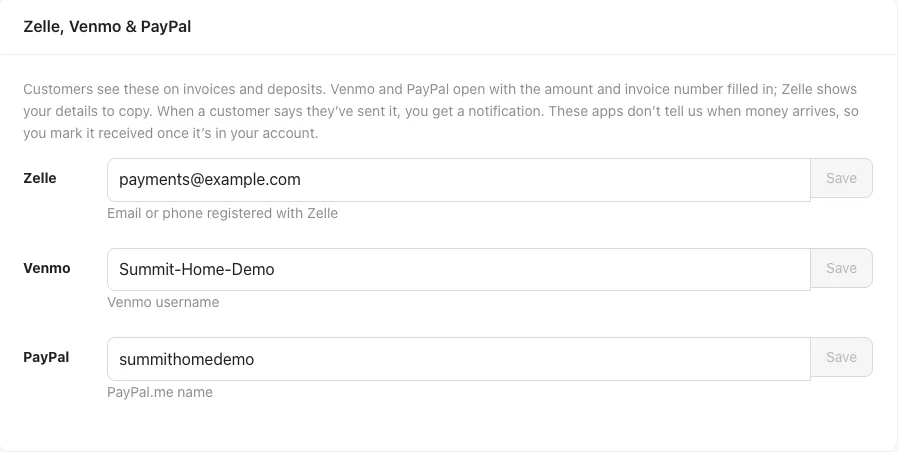
To stop offering one, clear the box and click Save. Each one also appears in the All payment methods list at the bottom of the page, where you can switch it off for a while.
What your customer sees
On an invoice, or the deposit on a signed quote, your methods show as buttons marked Pay directly. When your customer picks one:
- Venmo or PayPal: a Pay $210.00 with Venmo (or PayPal) button opens the app with the amount, and for Venmo the invoice number, already filled in.
- Zelle: the email or phone to send to, the amount and a memo, each with a Copy button, and a reminder to send it from their bank's app.
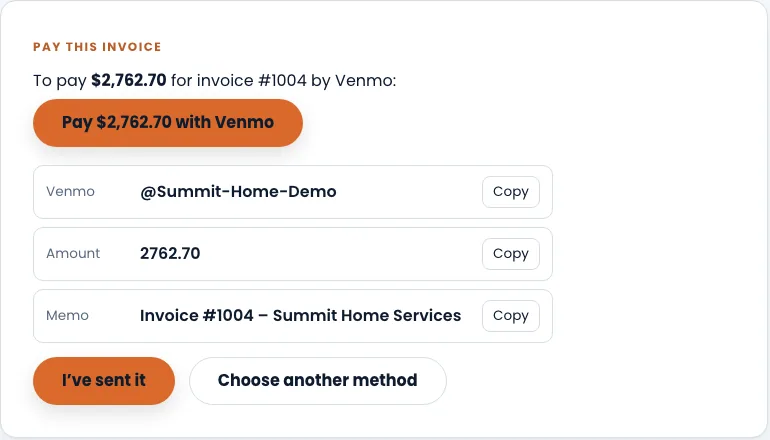
After paying, they tap I've sent it. That's all on their side.
Confirm the payment
Zelle, Venmo and PayPal don't tell Hello to Paid when money arrives, so you confirm it:
- When your customer taps I've sent it, you get an email and a phone alert: "Jordan Ellis says they sent $210.00 by Venmo for invoice #1005."
- Open the invoice. A box at the top says what they sent.
- Check your Venmo, Zelle (bank) or PayPal account.
- Click Mark received.
The payment counts as received, the balance updates, and your customer gets a receipt. See Record a payment.
Good to know
- There's no Hello to Paid fee on these payments. See Fees explained.
- Tips are only offered on card payments.
- If a customer pays some other way, use Record payment on the invoice.