Record a payment
Log a check, cash, Zelle, Venmo or other payment you received directly, confirm one your customer says they sent, fix or delete one, and record a refund.
Got paid outside Hello to Paid? Record it so the balance, status and your reports stay right. Recorded payments count as received straight away and have no fees.
On an invoice (web)
- Open the invoice in Work → Invoices.
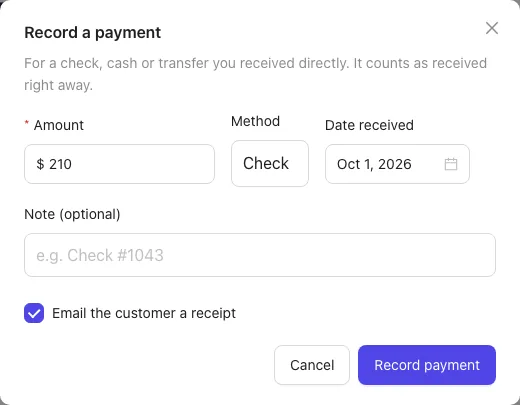
- Click Record payment.
- Check the Amount. It starts at the balance due; change it for a partial payment.
- Pick or type the Method: Check, Cash, Zelle, Venmo, Bank transfer or Card (in person).
- Set the Date received.
- Add a Note if you like, such as "Check #1043".
- Leave Email the customer a receipt ticked to send them a receipt.
- Click Record payment.
The invoice shows the payment and the new Balance due. When the balance reaches $0 it's marked Paid. Recording a payment on a draft invoice marks it as sent.
On an invoice (iPhone or iPad)
- Open the invoice from More → Invoices, or from the job.
- Tap Record a payment.
- Enter the amount, pick the method and add a note.
- Leave Email a receipt on if you want to send one.
- Tap Save.
A deposit on a quote
- Open the quote in Work → Proposals.
- In the Payments card, click Record a payment.
- Enter the Amount and Method, plus an optional Note.
- Click OK.
The card shows how much of the deposit is received and what's left. When you invoice the job, the deposit is taken off the balance.
When your customer says they've paid
If your customer picks Zelle, Venmo, PayPal, check or another offline method on their quote or invoice, a pending payment appears in the Payments card. When they tap I've sent it, you get an email and a phone alert, and a box at the top of the invoice (or quote) says, for example, "Jordan Ellis says they sent $210.00 by Venmo on Oct 1."
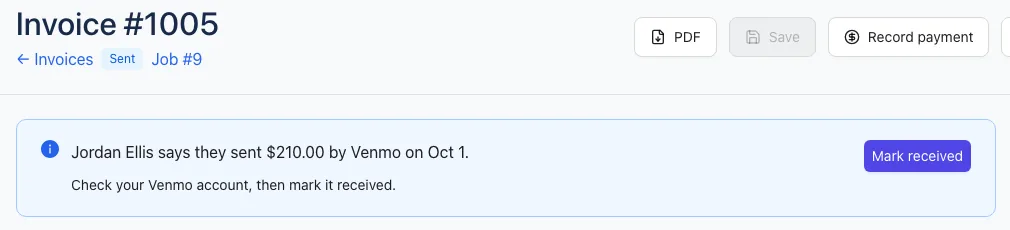
- Check your Venmo, Zelle, PayPal or bank account to see the money arrived.
- Click Mark received in the box (or next to the payment in the Payments card).
The payment counts as received and your customer gets a receipt. With payment emails set up, the box can show the payment service's own email as proof, so you don't have to check the app.
Fix or delete a recorded payment
On the web, open the invoice and find the payment in the Payments card.
- Click the pencil to change the amount, method, date or note, then click Save.
- Click the bin to delete it.
The paid total, Balance due and status are worked out again straight away. For example, deleting the only payment on a paid invoice puts it back to Sent.
Only payments you recorded (or marked received) can be changed. Online card payments can't be edited or deleted; refund them instead. See Online payments.
Record a refund
If you gave money back yourself, for example cash or a check:
- Open the invoice.
- In the Payments card, click Record a refund.
- Enter the Amount, Method and Date refunded, plus an optional Note.
- Click Record refund.
The refund shows in red and comes off the amount paid, so the balance goes back up. You can't refund more than has been paid. A refund you recorded can be edited or deleted like a payment.
To send a card payment back to the customer's card, use Refund next to that payment instead.