Recurring billing and autopay
Set up service plans that invoice a customer every month, quarter or year, and charge their saved card or bank account automatically.
Included on the Pro plan and up. Compare plans
Sell a maintenance agreement once and let it bill itself. A service plan makes an invoice for a customer every month, quarter or year. Turn on autopay and the invoice is also paid automatically from the customer's saved card or bank account.
Before you start
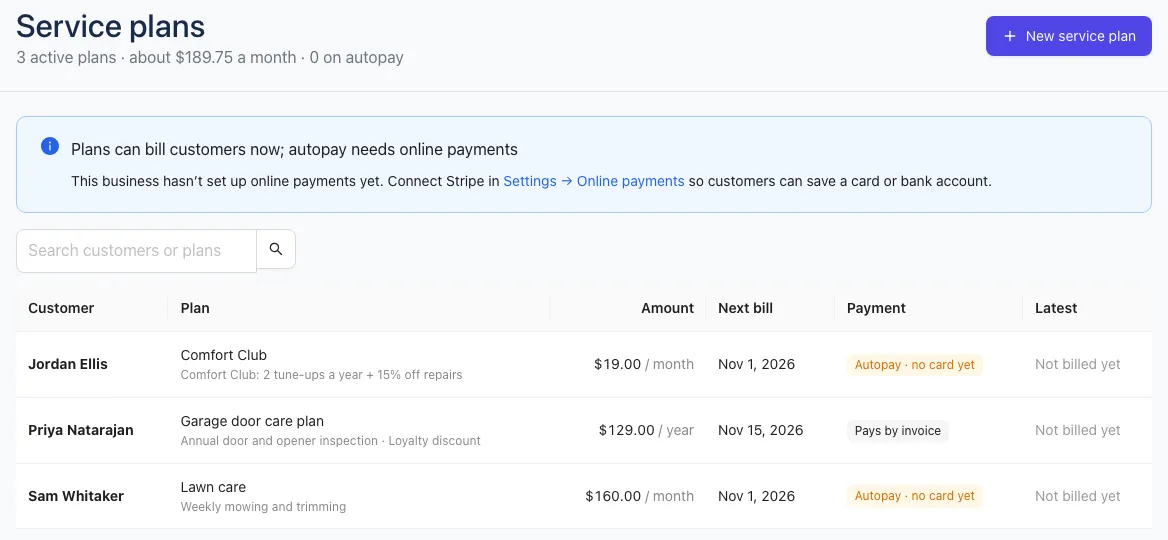
Plans can send invoices straight away. Autopay needs card payments, so connect Stripe first. Until then, the Service plans page shows a note that autopay needs online payments.
Create a service plan
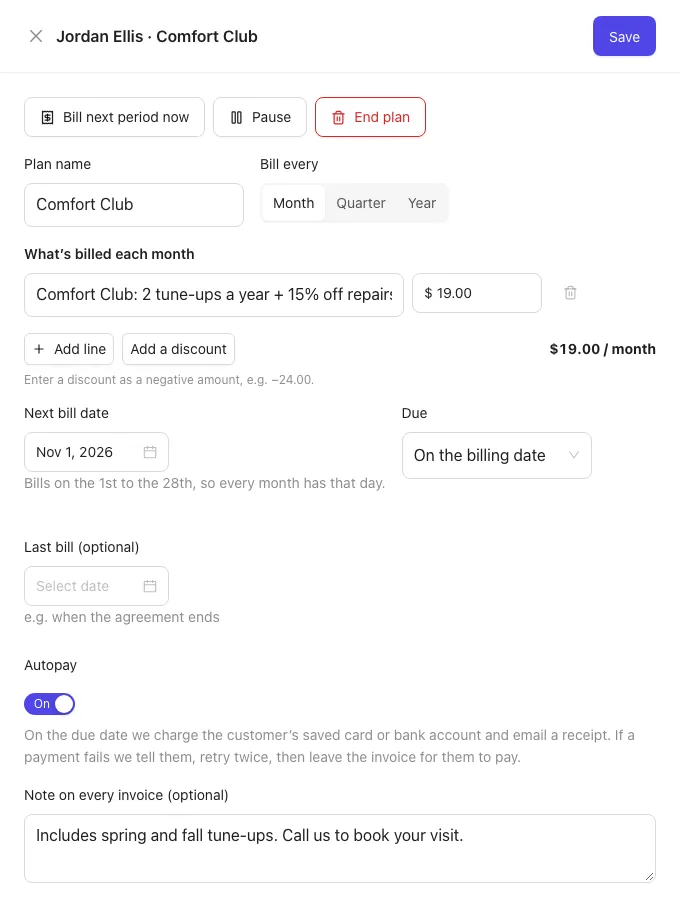
- Open Work → Service plans and click New service plan. (Or open a customer and click New in their Service plans card.)
- Pick the Customer.
- Give it a Plan name, like "Comfort Club".
- Choose Bill every: Month, Quarter or Year.
- Under What's billed each month (or quarter, or year), describe each line and its amount. Click Add line for more, or Add a discount and enter it as a negative amount, like -20.00.
- Pick the First bill date. Monthly, quarterly and yearly plans bill on the 1st to the 28th, so every month has that day.
- Choose when it's Due: on the billing date, or 3, 7 or 14 days later.
- Optionally set a Last bill date, for example when the agreement ends.
- Leave Autopay on to charge the customer's saved card or bank account, or turn it off to have them pay each invoice themselves.
- Add a Note on every invoice if you like, such as "Includes spring and fall tune-ups."
- Click Create plan.
The Service plans page lists every plan with its amount, next bill date, how it's paid and the latest invoice. The top line shows how many plans are active, roughly what they bring in a month, and how many are on autopay.
Get the customer's card or bank account
Customers save their own card or bank account. Card details never pass through your office.
- Open the plan (or the customer's page) and find Saved payment method.
- Click Email autopay setup link.
- Your customer gets an email with a link to their Client Hub page. They add a card or bank account there.
Until they do, the plan shows Autopay · no card yet. Once saved, it shows the card or bank, like Autopay · Visa •••• 4242. If they have more than one, click Make default on the one to use, or Remove to delete one. Customers can also remove theirs from their Client Hub page at any time.
What happens each period
- On the bill date, Hello to Paid makes an ordinary invoice, titled with the plan and the period (like "Comfort Club · November 2026"), and emails it to your customer.
- With autopay: on the due date, the saved card or bank account is charged and your customer gets a receipt. Card payments go through at once; bank payments take a few business days to clear.
- Without autopay: your customer pays the invoice from the link, like any invoice. Invoice reminders apply as usual.
If an autopay charge fails, your customer gets an email, you get a phone alert, and it's tried again twice (3 days later, then 4 days after that). After that, the invoice is left for them to pay. The plan's Latest column shows payment failed so you can follow up.
Change, pause or end a plan
Click a plan to open it.
- Change anything and click Save. Changes apply from the next bill.
- Bill next period now makes the next invoice straight away, instead of waiting for the bill date.
- Pause stops new invoices until you click Resume.
- End plan stops it for good. Invoices already sent stay as they are.
The plan also lists every invoice it has made, with its status.