Confirm payments from your payment emails
Forward the "you got paid" emails from Venmo, PayPal and your bank (Zelle), and Hello to Paid matches them to invoices so you don't have to check your apps.
An add-on we switch on for your business. Ask us about it
Venmo, PayPal and your bank email you when money arrives. Forward those emails to your own private Hello to Paid address and we check each one is genuine, then match it to the invoice it's for. You confirm with one click, or let strong matches confirm themselves.
This works with Zelle, Venmo and PayPal, so set those up first.
How it works
- Your customer pays you by Venmo, PayPal or Zelle.
- Venmo, PayPal or your bank emails you about it. Your email forwards that email to your Hello to Paid address.
- We check the email really came from Venmo, PayPal or your bank (it's signed by them). Anything else is ignored, so a fake email can't mark an invoice paid.
- We read the amount, who paid and the note, and match it to the payment your customer said they sent, or to the invoice the note names. (The Venmo link on your invoices puts the invoice number in the note.)
- The invoice shows the evidence next to Mark received, and you get a phone alert. Or, if you've turned on automatic confirming and it's a strong match, it's marked received for you.
We keep what we read (amount, payer, note and the result), never the email itself. We never record a second payment for money that's already marked received.
Set it up
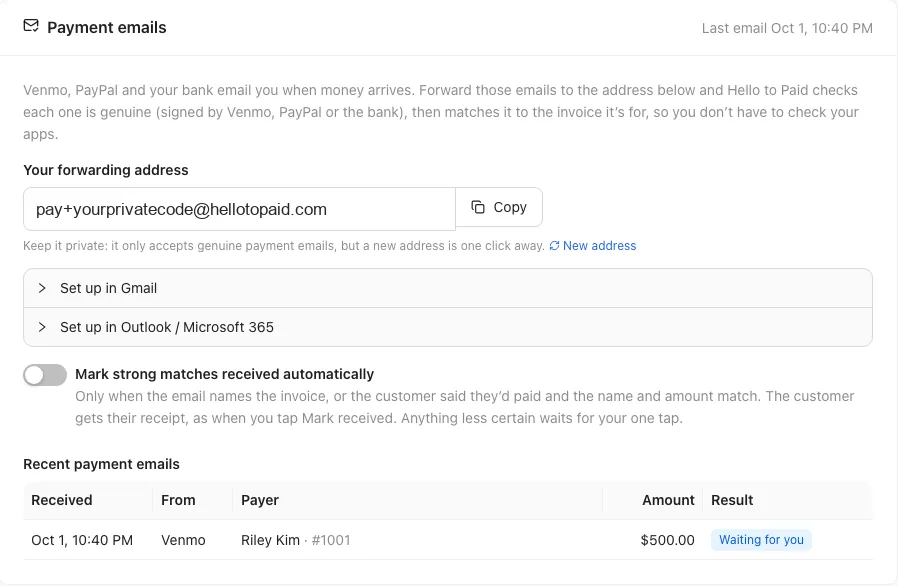
- Open Settings → Payments and find the Payment emails box.
- Copy Your forwarding address. It looks like pay+ followed by a private code @hellotopaid.com.
- Set up forwarding in your email. Open Set up in Gmail or Set up in Outlook / Microsoft 365 in the box for the exact steps (see below).
- When the first email arrives, the box shows Last email with the time, and lists it under Recent payment emails.
In Gmail
- In Gmail, open Settings → See all settings → Forwarding and POP/IMAP, click Add a forwarding address and paste your address.
- Gmail sends a confirmation code to that address. In a minute the code appears in the Payment emails box; copy it and type it into Gmail.
- Leave Gmail's own forwarding off, so only payment emails go.
- Copy the search shown in the box, paste it into Gmail's search bar, click Create filter, and choose Forward it to your address.
In Outlook or Microsoft 365
- In Outlook, open Settings → Mail → Rules and click Add new rule.
- Set the condition to From contains venmo.com, paypal.com and your bank's domain (like chase.com).
- Set the action to Redirect to your address. Choose Redirect, not Forward, so the email arrives unchanged.
- Your Microsoft 365 admin may need to allow forwarding to outside addresses.
Confirm a payment
When an email matches, the invoice (or quote, for a deposit) shows a box like "Venmo's email says Jordan Ellis sent $210.00 on Oct 1", with the note from the payment.
- Matches this payment (green): the email names the invoice, or your customer said they'd paid and the name and amount match.
- Same amount: check it's theirs (yellow): only the amount matches, so make sure it's from the right person.

Click Mark received. Your customer gets their receipt.
Confirm strong matches automatically
Turn on Mark strong matches received automatically in the Payment emails box. Then a green match is marked received straight away and your customer gets their receipt, just as if you'd clicked Mark received. Anything less certain still waits for you.
Recent payment emails
The box lists the latest emails with what happened to each:
| Result | What it means |
|---|---|
| Marked received | Confirmed automatically. |
| Waiting for you | Matched; click Mark received on the invoice. |
| Already received | That payment was already marked received. Nothing changed. |
| No matching payment | We couldn't find an invoice or payment it belongs to. Record it yourself if it's for a job. |
| More than one match | It could be for several invoices. Mark the right one received yourself. |
| Not a payment | An email that isn't a payment, like a statement or ad. |
| Not genuine | It wasn't signed by Venmo, PayPal or a bank we know, so we ignored it. |
Keep the address private
Only genuine payment emails are acted on, but keep the address to yourself. If it gets out, click New address. The old one stops working right away, so update your email forwarding after.