Create and send an invoice
Bill a finished job or a signed quote, or start an invoice from scratch, then email it so your customer can pay online.
An invoice has its own link, like a quote. Your customer opens it, sees the balance and can pay online. Any deposit they already paid is taken off automatically.
Create an invoice
Pick the way that fits:
- From a job: open the job in Work → Jobs and click Create invoice. Once the last visit is done, the job moves to Needs invoicing and the button turns blue. Lines come from the job.
- From a signed quote: open the quote in Work → Proposals and click Create invoice. Lines are exactly what your customer chose and signed for.
- From scratch: go to Work → Invoices and click New invoice.
A job or quote only ever has one live invoice. If one already exists, the button shows its number (like Invoice #1004) and opens it instead.
Other ways to bill:
- Bill a big job in stages (a deposit, then 40%, then the rest): Progress invoicing.
- Invoice lots of finished jobs at once: Batch invoicing.
- Bill the same customer every month or year: Recurring billing and autopay.
In the app, open a job and tap Create invoice.
Fill it in
The invoice opens as a draft. Your customer can't see it yet.
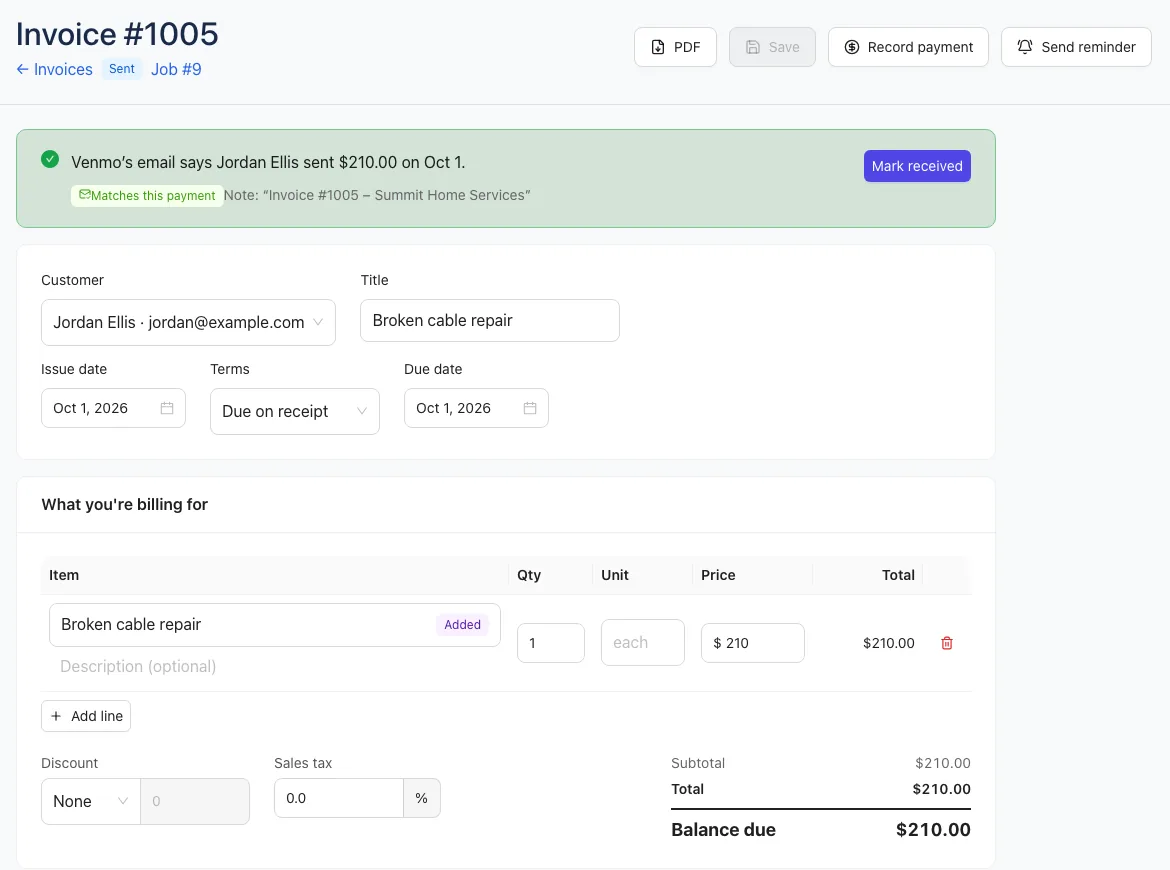
- Check the Customer and Title.
- Set the Issue date and Terms: Due on receipt, Net 15 or Net 30. The Due date fills in for you, and you can change it.
- Under What you're billing for, adjust the lines for any changes on the job. Click Add line for extra work. Lines are tagged From proposal or Added.
- Set a Discount or Sales tax if needed.
- Add Notes to the customer, like "Replaced two worn rollers while on site."
- Click Save.
The totals show any deposit already received and the Balance due.
Send it
- Click Send invoice. You need at least one line with a price.
- The invoice is emailed to your customer and the link goes live.
- To share it yourself, copy the link from the Customer link card, or click Open to see what your customer sees.
If the customer has no email address, the link still goes live and you'll see a message saying so. Copy the link and text it yourself.
In the app, open the invoice from More → Invoices and tap Send (or Resend), or Share link to text it.
What your customer sees
A page with your logo and colors, the Balance due, the due date, every line, and a Pay this invoice box. They can pay the full balance or a different amount, by card or any other way you take. They can also download a PDF. See Online payments.
Track it
Work → Invoices shows totals for Outstanding, Overdue and Collected this month, with filters for Unpaid, Overdue, Drafts, Paid and All.
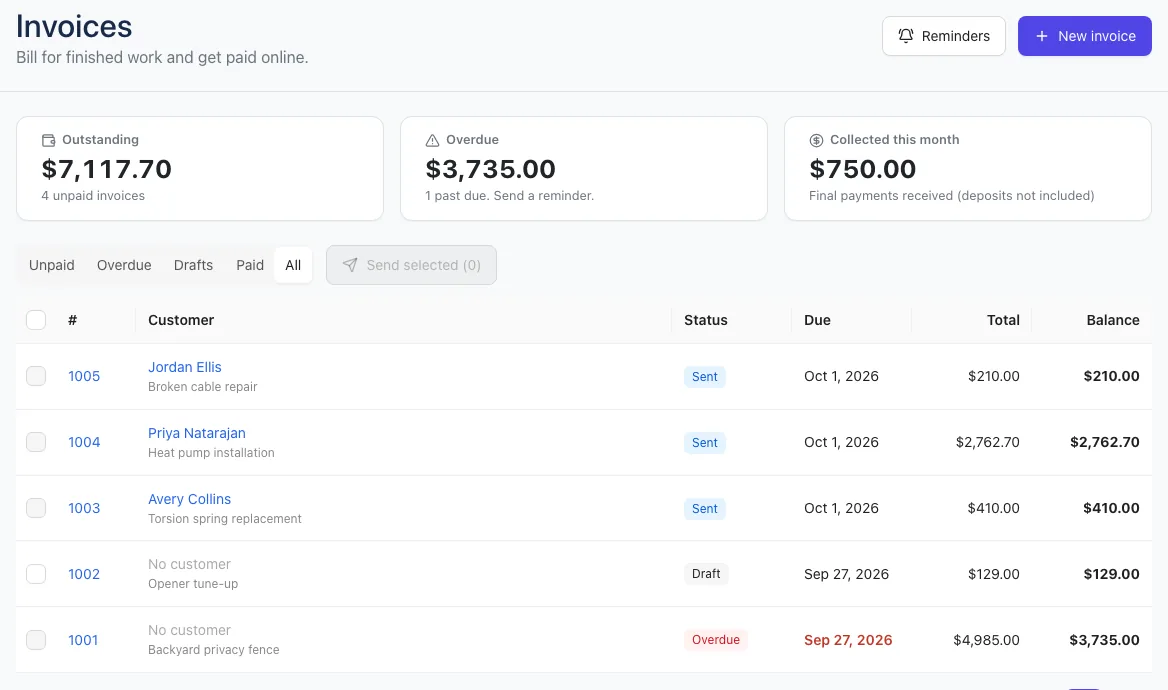
| Status | What it means |
|---|---|
| Draft | Not sent. Your customer can't see it. |
| Sent | Waiting for payment. |
| Partly paid | Some has been paid. |
| Overdue | Past the due date with a balance left. |
| Paid | Paid in full. Its lines can no longer be edited. |
| Void | Cancelled. |
Click PDF at the top of any invoice to download a copy. On a sent invoice, Send reminder emails your customer a nudge with the pay link. See Invoice reminders.
Fix a mistake
- Draft: click Delete draft at the bottom. Any deposit goes back to the quote.
- Wrong payment: fix or delete it in the Payments card. See Record a payment.
- Already sent: click Void invoice. Your customer's link shows it as cancelled. This can't be undone. You can then create a new invoice from the same quote or job.
Next: Online payments and Invoice reminders.