Tips
Let customers add a tip when they pay an invoice by card. Tips go to you in full and never count toward the invoice.
Happy customers often want to thank the crew. Turn on tips and your invoice page asks "Add a tip?" right before your customer pays by card.
Turn on tips
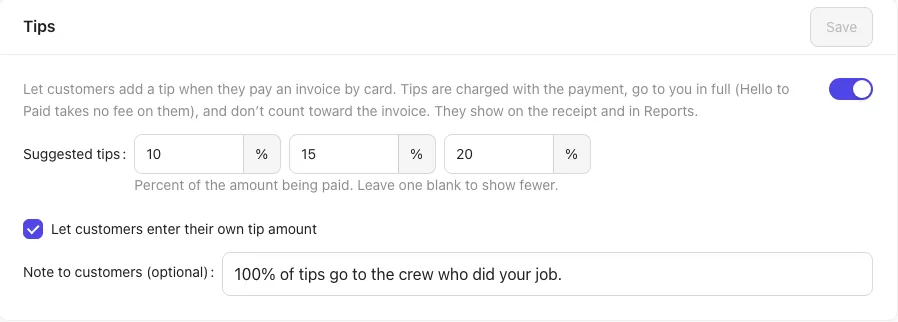
- Open Settings → Payments.
- In the Tips box, turn on the switch.
- Set up to three Suggested tips as percentages, like 10, 15 and 20. Leave one blank to show fewer.
- Tick Let customers enter their own tip amount if you want an Other choice.
- Optionally add a Note to customers (optional), like "100% of tips go to the crew who did your job."
- Click Save at the top of the box.
Tips only work with card payments, so connect Stripe first. If you turn tips on without it, the box reminds you.
What your customer sees
On the invoice, under Pay this invoice, they see Add a tip? with No tip, your suggested percentages (each with its dollar amount, worked out on what they're paying now) and Other. The page shows the card total with the tip added. Tips are offered on invoices, including from the Client Hub, not on quote deposits.
If they pick Zelle, Venmo, check or another way to pay directly, no tip is added.
How tips work for you
- The tip is charged with the card payment and goes to you in full. Hello to Paid takes no fee on tips; Stripe's processing fee is on the whole charge.
- Tips never count toward the invoice: the total, amount paid and balance stay the same.
- On the invoice, the payment shows "+ $25.00 tip", and the totals show Tips received (not part of the invoice).
- The receipt shows the tip, and Reports shows a Tips total.
If you refund a payment that had a tip, a partial refund comes off the invoice amount first, then the tip. A full refund returns both.