Batch invoicing
Invoice many finished jobs at once, and send a stack of draft invoices together.
Included on the Pro plan and up. Compare plans
At the end of a busy week you might have a dozen finished jobs to bill. Batch invoicing makes one invoice per job in a single step, and lets you send a pile of drafts together.
Invoice many jobs at once
- Open Work → Jobs.
- Click the Needs invoicing filter. Tick boxes appear next to each job.
- Tick the finished jobs you want to bill (or the box at the top to pick them all).
- Click Invoice selected.
- The window shows how many invoices and the total. Tick Send to customers now to email them straight away, or leave it off to save them as drafts to check first.
- Click Create drafts (or Create & send).
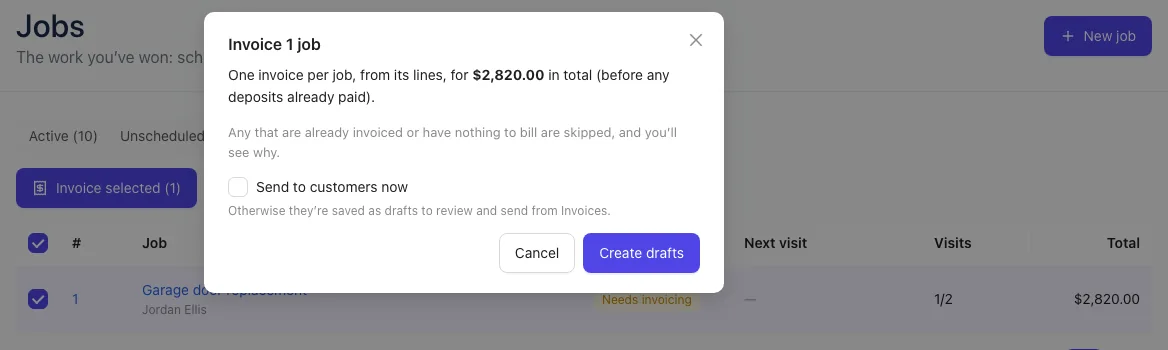
Each job gets its own invoice, built from its lines, with any deposit already paid taken off.
The results
A Batch results window lists every job with what happened:
- Draft created or Sent, with the total and a link to the invoice.
- Skipped, with the reason: for example, the job is already invoiced or has nothing to bill.
- Failed, if something went wrong. Open that job and try Create invoice on its own.
If you chose to send and a customer has no email address, their invoice is still marked sent and its link goes live, and the window says so. Open it and share the link yourself.
Send many drafts at once
- Open Work → Invoices.
- Tick the draft invoices you want to send. Only drafts can be ticked.
- Click Send selected.
- Check the total and click Send.
Each customer with an email on file gets theirs by email. Invoices for customers with no email are marked sent and the window tells you to share the link yourself. Drafts with a $0 total are skipped. A Batch results window shows what was sent and what was skipped.