Revenue goals
Set a monthly and yearly revenue goal and see on the dashboard whether you're ahead of pace or behind.
Included on the Growth plan. Compare plans New and rolling out: if you don’t see it yet, ask us to switch it on.
Set a revenue goal for the month, the year, or both. The dashboard then shows how far along you are and whether you're on pace, and Reports shows every month of the year against its goal.
Set your goals
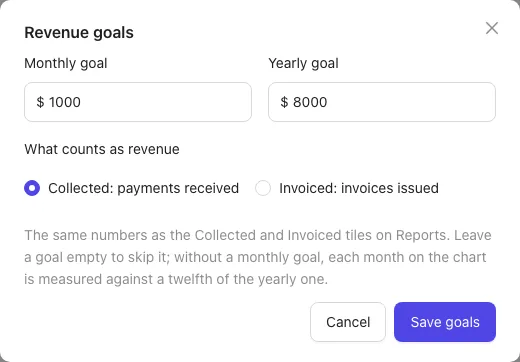
- On the Dashboard, click Set a goal (or the pencil on the goal card). You can also open Reports, click Goals, then Edit goals.
- Enter a Monthly goal, a Yearly goal, or both. Leave one empty to skip it.
- Under What counts as revenue, pick Collected: payments received or Invoiced: invoices issued. These are the same numbers as the Collected and Invoiced tiles on Reports.
- Click Save goals.
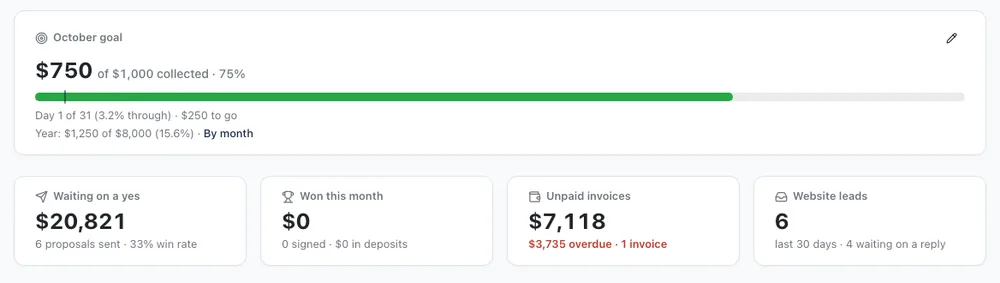
Read the goal card
- The big number is what's come in so far, out of the goal, with the percentage.
- The bar fills as you go and turns green when you're ahead. The small tick on the bar is where an even pace would put you today.
- Underneath: how far through the month you are, and either how much is left to go or how far ahead of or behind pace you are, with what you're on track for at this rate. Behind pace shows in red.
- With both goals set, a second line shows the year so far. Click By month to see the chart.
For the first three days of a month the card just says how much is left; it's too early to judge pace.
See the year by month
Open Reports and click Goals.
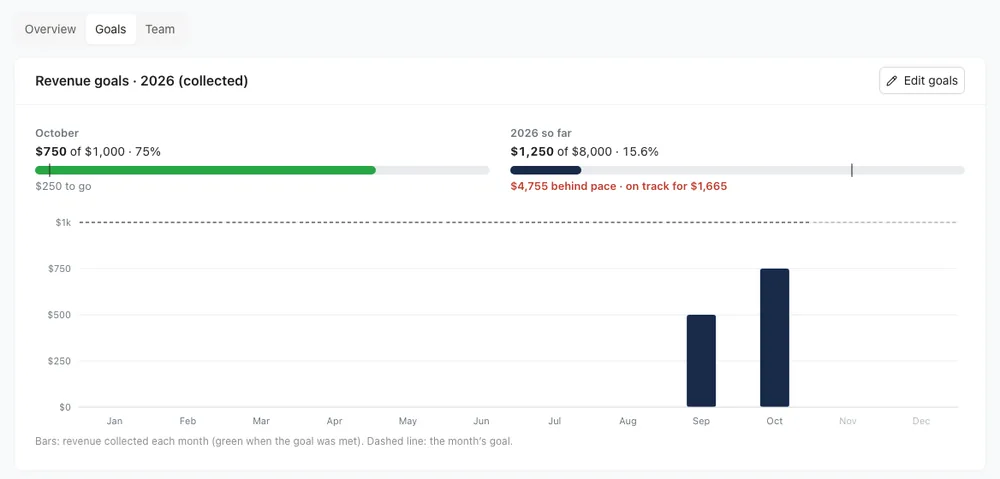
- This month and the year so far, each with its own bar.
- A bar for every month of the year: green when that month's goal was met. The dashed line is each month's goal.
- With only a yearly goal, each month is measured against a twelfth of it.
You need a role that can see prices and money to see or change goals.