Your dashboard
The home page after you sign in: your setup checklist, revenue goal, what's waiting on a yes, unpaid invoices and new website leads.
The Dashboard is the first page you see on the web. It shows how the business is doing today and what needs a reply.
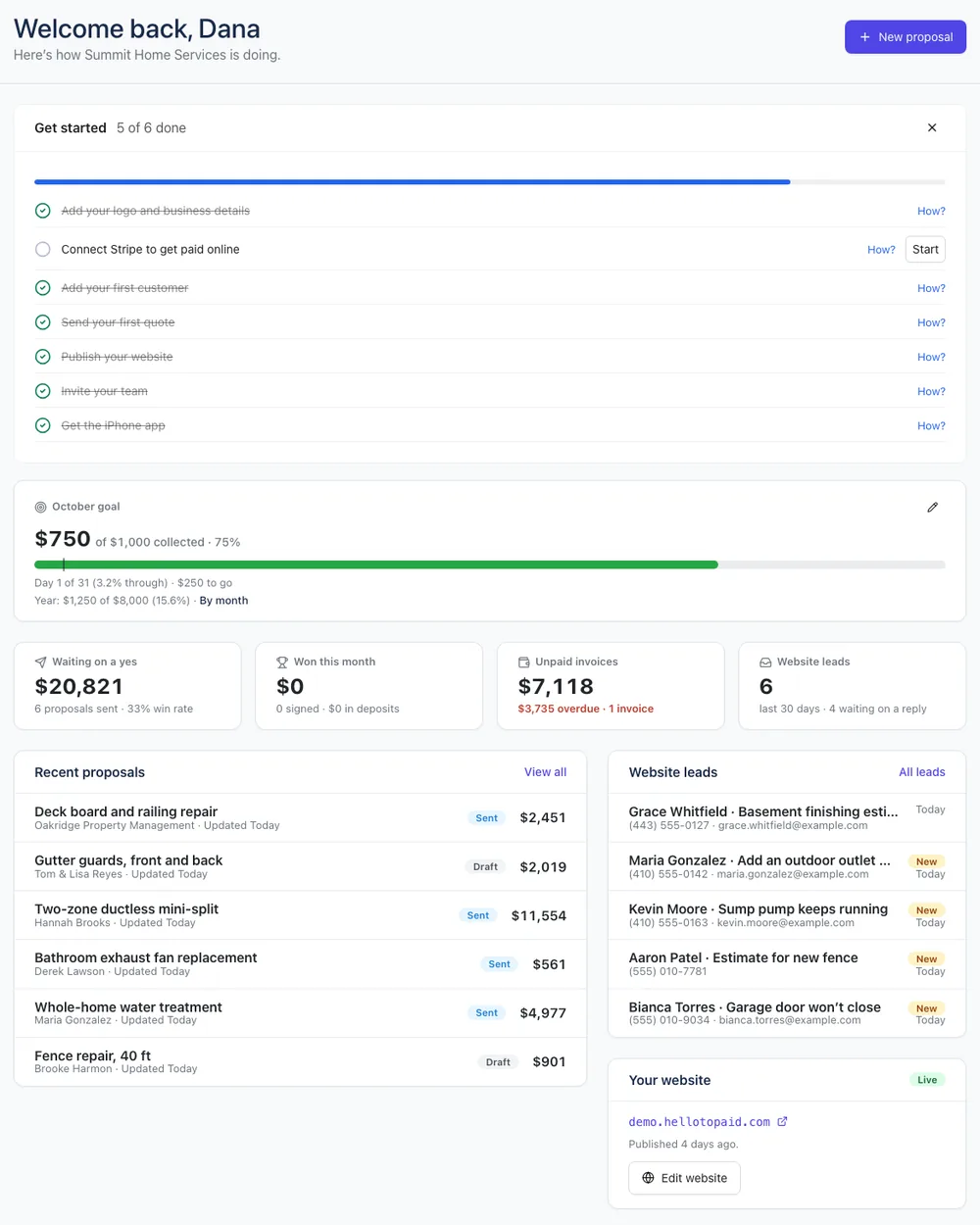
The Dashboard is for people who can see prices and money (Owners and Office). Crew go straight to the Schedule instead. See Roles and permissions.
The setup checklist
New accounts see a Get started card at the top. Each step ticks itself off when it's done, for real: when your logo is saved, Stripe is connected, your first quote is sent and so on.
- Click Start to go to the page for that step.
- Click How? to open the help article for it.
- Steps marked Optional (like getting the iPhone app) don't count toward the total.
- Click the X in the corner to hide the checklist. It also goes away by itself once every step is done.
Only people who can change business settings see the checklist. The steps follow Getting started.
The numbers
| Tile | What it shows |
|---|---|
| Waiting on a yes | The value of quotes you've sent that aren't signed yet, how many, and your win rate. |
| Won this month | Quotes signed this month, and the deposits paid on them. |
| Unpaid invoices | What customers owe you. Overdue money shows in red; otherwise it shows what you collected this month. Click it to open Invoices. |
| Website leads | Contact-form messages from your website in the last 30 days, and how many are still new. |
On plans with revenue goals, a goal card sits above the numbers. See Revenue goals.
Recent quotes, leads and your website
- Recent proposals lists your latest quotes with their status and total. Click one to open it, or View all.
- Website leads lists the newest messages from your website's contact form. Click All leads to see them all. See Get leads from your website.
- Your website shows whether your site is live, its address, and an Edit website button.
Click New proposal at the top to start a quote straight away.
Search from any page
The search box at the top of every page finds quotes (by title or customer name) and customers (by name, email or phone). Start typing and pick a result to open it.