Get leads from your website
Where contact-form messages from your website go, and how you're alerted.
Every website has a contact form. When a visitor fills it in, you get a new request, an email, and a phone alert if you use the app.
Where leads land
Each message becomes a request in Work → Requests, marked as coming from the website form. From there you can mark it contacted, create the customer, book an assessment visit, or click Create proposal to quote it. See Your requests inbox.
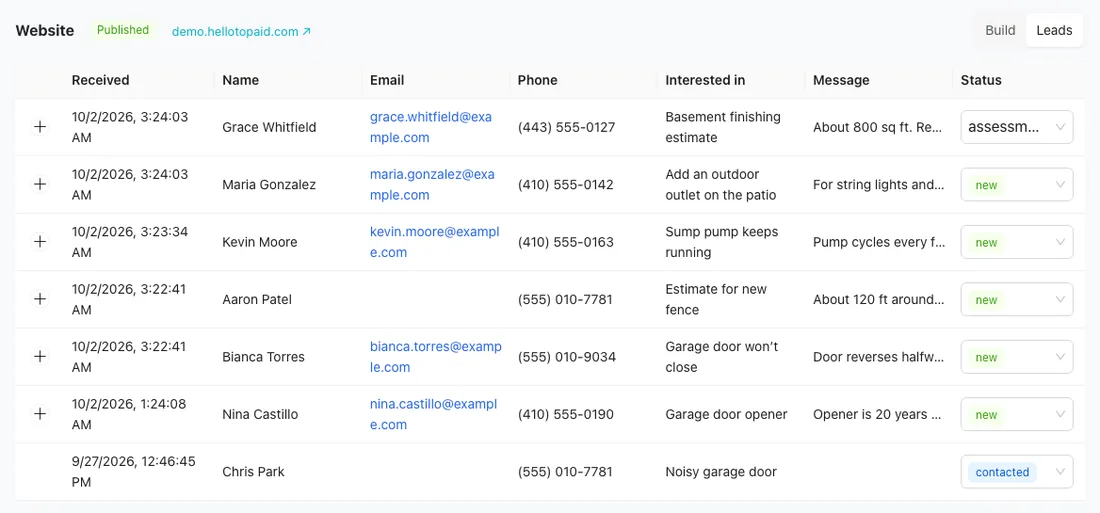
You'll also find website leads on the Website page: click Leads at the top (or All leads on the Dashboard). It lists when each lead arrived, their name, email, phone, what they're interested in and their message. Click + on a row to read the whole message, and use the Status menu to mark a lead new, contacted or archived.
How you're alerted
- Email: sent to the Email on Settings → Branding. If that's blank, no email is sent, so fill it in.
- Phone: owners get a "New request from your website" notification in the iPhone app, once push notifications are on.
- Dashboard: the web Dashboard lists recent website leads, and the app's Today screen shows a New requests count. Both are for people who can see prices and money.
What the form asks
Name, Email, Phone, I’m interested in (a service from your list) and How can we help? Name and email are required.