Build a quote
Add a title, customer, scope of work, line items and photos, then set tax, discount and deposit.
A quote is what your customer sees, picks from and signs online. On the web the menu calls quotes Proposals; in the iPhone and iPad app they're Quotes.
Start a new quote
- Go to Work → Proposals.
- Click New proposal. A blank draft opens.
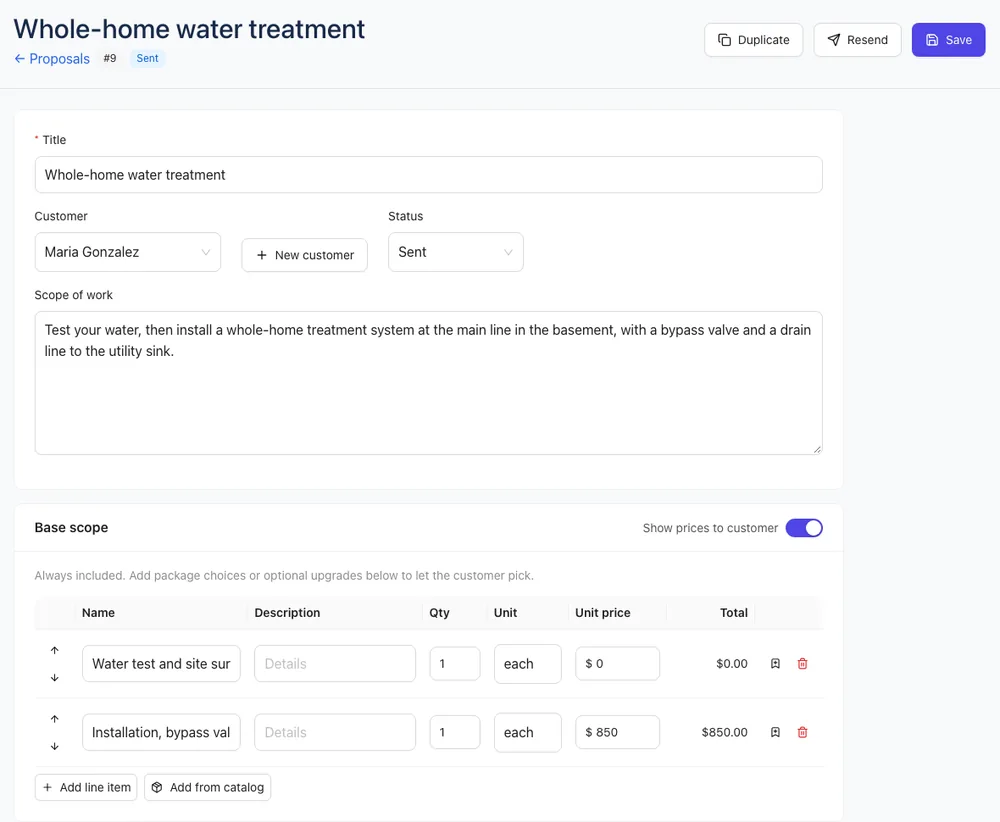
- Type a Title your customer will recognize, like "New garage door and opener".
- Pick the Customer. Not in your list yet? Click New customer, enter a name, email and phone, and click OK.
- Write the Scope of work. This is the first thing your customer reads, so describe the job in plain words.
- Click Save. Save any time; nothing reaches your customer until you send it.
New quotes start with your defaults for sales tax, deposit, how long a quote is valid and payment terms. Set them once in Settings → Proposals; you can still change them on each quote. See Set your quote defaults.
The Status box shows Draft until you send the quote. Use Send to customer rather than changing it by hand, so your customer gets the email. See Send a quote and track it.
Add line items
The Base scope section holds the work that's always included.
- Click Add line item.
- Fill in Name, Description, Qty, Unit (each, hr, lin ft, sq ft and so on) and Unit price. The line total works itself out.
- Use the up and down arrows to change the order, or the trash can to remove a line.
- Click Add from catalog to drop in saved items, or the bookmark icon on a line to save it for next time. See Product catalog.
Show or hide prices
The Show prices to customer switch sits at the top of Base scope.
- On: your customer sees the price of every line, plus subtotal, discount and tax.
- Off: they see the items and quantities, and just the total. The page says itemized pricing is available on request.
Give your customer choices
Below Base scope, click Add choices (customer picks one) for good/better/best options, or Add optional items (customer can add) for extras. These need the Pro plan. See Choices and optional items.
Tax, discount, deposit and terms
In Pricing & terms:
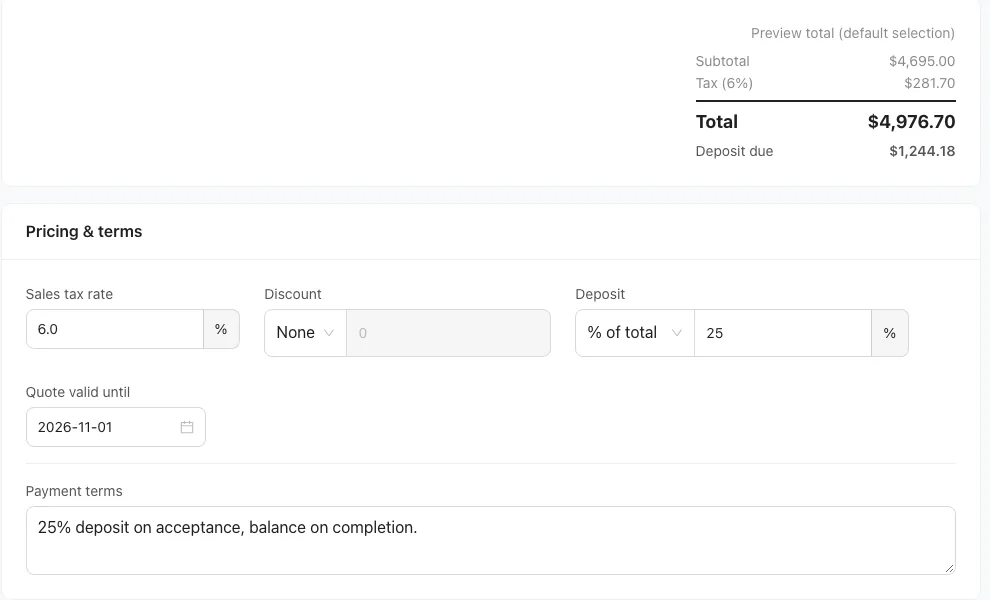
- Sales tax rate: a percentage, charged after any discount.
- Discount: choose $ off or % off, then enter the amount.
- Deposit: choose $ amount or % of total. See Deposits, expiration and revisions.
- Quote valid until: the last day your customer can sign. Leave it empty for no expiry.
- Payment terms: a line such as "50% deposit on acceptance, balance on completion."
The Preview total card above it updates as you type. If the quote has choices, it uses the ones you've preselected.
Add photos
In Photos, click Upload and pick a picture. Photos appear on the quote under "Project photos". Click the trash can on a photo to remove it.
Edit a quote on your phone
In the app, tap Quotes, then + to start a Blank quote (or a template). Open any quote that isn't signed and tap Edit to change the title, customer, scope of work, line items, tax rate and deposit %. Add site photos from the Photos section on the quote screen.
Ready? Send the quote and track it.