The sales pipeline
See every open request and quote on one board by stage, with its value, what to do next, and which ones you lost and why.
Included on the Growth plan. Compare plans
The pipeline puts every open request and quote on one board, from the first call to the signed quote. Each card says what to do next, so nothing gets forgotten.
Open the pipeline
Go to Work → Pipeline. You need the Quotes permission to see it.
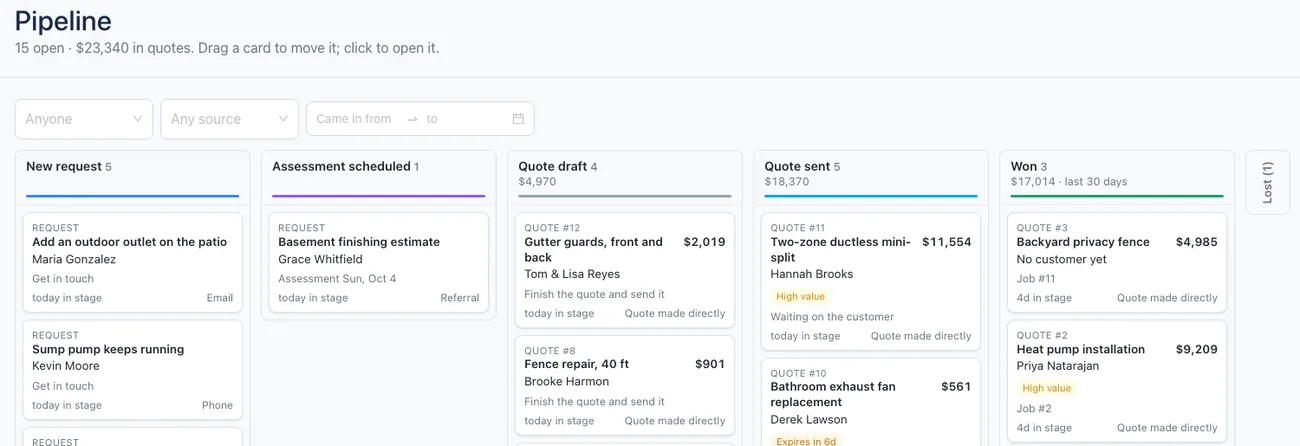
The top of the page shows how many are open and, if you can see prices, the total value of your open quotes.
The stages
| Stage | What's in it |
|---|---|
| New request | Requests you haven't booked an assessment for yet. |
| Assessment scheduled | Requests with an on-site assessment. |
| Quote draft | Quotes you haven't sent yet. |
| Quote sent | Quotes waiting on your customer. |
| Won | Quotes signed in the last 30 days. |
| Lost | Requests and quotes you marked lost in the last 30 days. Click the narrow Lost column to open it; Hide folds it away. |
Once a request becomes a quote, the quote's card takes its place. Column totals show the value in each stage.
Read a card
- The title, the customer and the value.
- The next step, like Get in touch, Finish the quote and send it, Waiting on the customer, Follow up with a call or Schedule the job.
- Tags such as High value, Expires in 5d, Expired, 2 follow-ups sent or Assessment past.
- How long it's been in this stage, and who's assigned (or where it came from).
Click a card to open the request or quote.
Move cards
Drag a card to another column. Only moves that do something real are allowed; anything else tells you why.
- A request onto Quote draft creates the quote, the same as Create proposal on the request.
- A new request onto Assessment scheduled adds an unscheduled assessment. Book its time on the Schedule.
- Any open card onto Lost asks why it was lost.
- A lost card dragged back to where it came from reopens it.
Sending a quote happens on the quote itself, and a quote is only Won when your customer signs it.
Mark something lost
- Drag the card onto Lost.
- Pick a reason: Price too high, Went with someone else, No response, Not ready / postponed, Outside our service area or Other, and add details if you like.
- Click Mark lost.
A lost quote shows Lost on the Proposals list. Its link keeps working, and quote follow-up emails stop. Sending it again reopens it. A lost request is archived.
Filter the board
Use the menus above the board to show one person's work (Anyone), one source (Any source, like Website or Phone), or what came in between two dates. Click Refresh to load the latest.