Schedule visits and assign crews
Book visits on the Schedule, drag to reschedule, assign your team, send "On my way", and see what your crew sees.
Every job is done in one or more visits. A visit has a time, the people assigned to it, notes and a checklist. The Schedule shows every visit on one calendar.
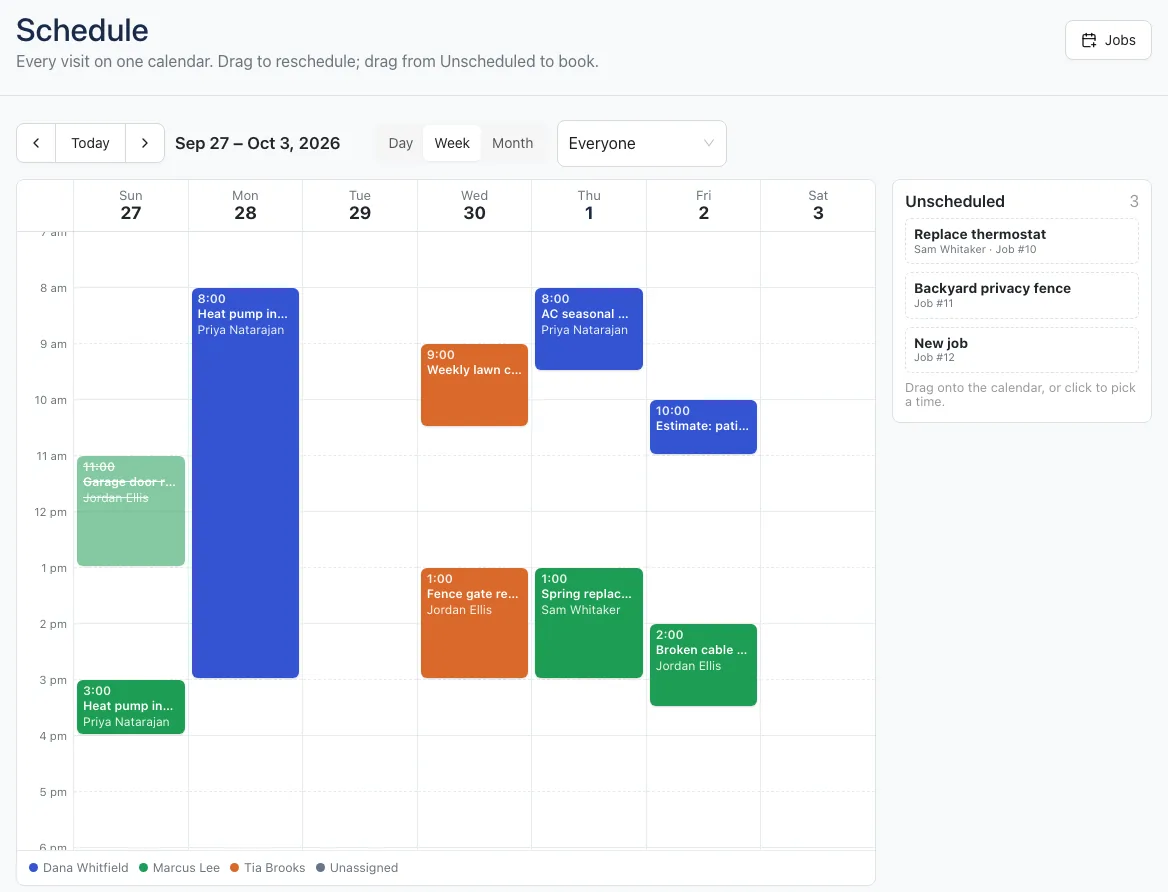
Book a visit
- Open Schedule in the menu.
- New jobs start with an unscheduled visit. It waits in the Unscheduled list on the right.
- Drag it onto the calendar at the day and time you want. Or click it to pick a time.
To add another visit, open the job (Work → Jobs) and click Add visit on the Schedule card. Not sure when? On the Growth plan, Find a time suggests the best open slots. See Find a time.
Change a visit
Click any visit to open it. You can set:
- When: the day, start and end time. Clear the day to make it unscheduled again.
- Team: everyone going. You can assign more than one person.
- Checklist: tick the job's checklist steps as they're done.
- Notes: what was done, parts used, anything the office should know.
Click Save. To move a visit quickly, drag it to a new time; it keeps its length. In Month view, drag it to another day and it keeps its time.
Remove (bottom left of the visit) deletes the visit.
Read the calendar
- Switch between Day, Week and Month. Use the arrows to move, and Today to jump back. The calendar shows 6am to 9pm.
- Each person has a color, shown in the key under the calendar. A visit takes the color of the first person assigned. Unassigned visits are gray.
- Use the Everyone menu to show one person's visits, or only Unassigned ones.
- Completed visits are faded. In Month view, click a day's number (or + more) to open that day.
Mark a visit done
- Click Mark complete in the visit. Reopen undoes it.
- Or tick the Done box next to the visit on the job page.
| Visit status | Meaning |
|---|---|
| Scheduled | Booked and not done yet. |
| Unscheduled | No day picked yet. |
| Completed | Someone marked it complete (on the web or in the app). |
| Canceled | The job was completed or archived before this visit happened. |
When the last visit on a one-off job is completed, the job moves to Needs invoicing and the job page says "Last visit done. The job is ready to invoice."
On the way
When a visit has a time and a customer, the visit shows Heading there?. Pick roughly how soon you'll arrive (10 to 60 minutes) and click Send "On my way" to email your customer. The visit then shows when it was sent. Clock in starts your timer on that visit. See Time tracking and timesheets.
Plan the day's driving
In Day view, click Optimize route to put the day's visits in the shortest driving order. See Optimize a day's route.
What your crew sees
People with the Crew role:
- See only their own visits on the Schedule, and on the app's Today and Schedule tabs.
- Can mark their visits complete, tick the checklist, add notes and photos, and clock in.
- Can't reschedule or reassign visits. If they try, they'll see "Ask the office to reschedule or reassign this visit."
- Don't see prices or totals.
See The app for crews and Roles and permissions.