Time tracking and timesheets
Clock in and out on the web or the app, see the week's hours, and fix or add entries.
Everyone on your team can clock in and out, on a job or not. Time on a job feeds job costing. Owners and office staff see everyone's hours.
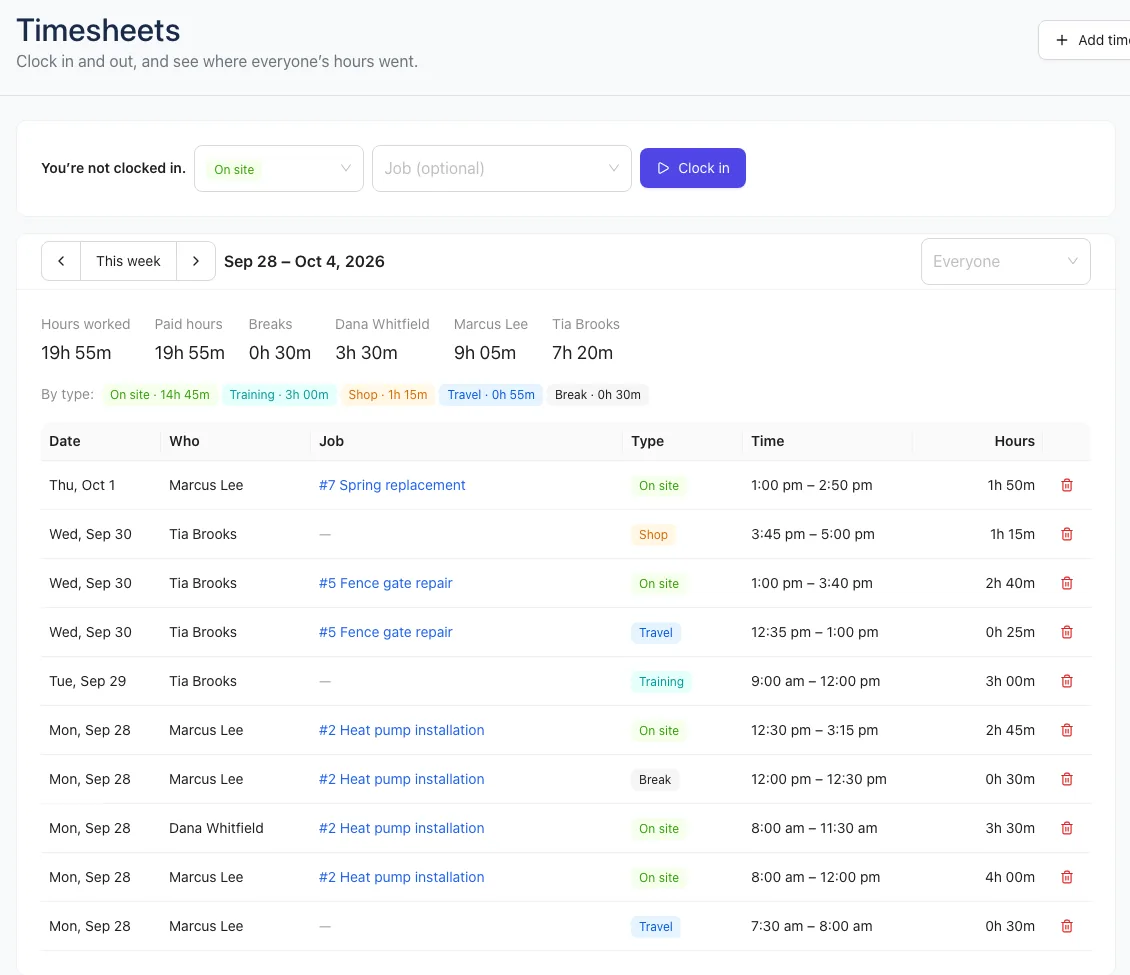
Clock in on the web
- Open Work → Timesheets.
- Pick the type of time: On a job, Driving, Shop / office or Break. (With breaks and labeled time on, you pick from your own time types instead, like On site or Travel.)
- Pick a Job if it's for one (optional).
- Click Clock in. A running timer appears at the top of every page; click it to come back to Timesheets.
- Click Clock out when you're done.
You can also click Clock in inside a visit on the Schedule, or on a job's Job costing card. Clocking in stops any clock you already have running.
Clock in on the app
- On Today, tap Clock in and choose what you're doing.
- Or open a visit and tap Start · clock in to clock in to that job. If you're already on the clock, it reads Switch clock to this visit.
- Tap Clock out (or Stop clock on the visit). Marking a visit complete also clocks you out of it.
Your hours are under More → Timesheets in the app.
See the week
The week runs Monday to Sunday. Use the arrows or This week to move between weeks.
- The totals at the top show the hours worked, and (for Owners and office staff) each person's hours. Totals don't include breaks.
- Each entry shows the day, who, the job, the type, the times and the hours. Click a job to open it.
- Owners and office staff can pick one person from the Everyone menu.
Fix or add time
- Forgot to clock in? Click Add time (the + in the app) and enter the Day, From – to, Type, Job and any Notes.
- Wrong entry? Delete it with the trash icon and add it again.
- Crew can only add and delete their own time. Owners and office staff can add time for anyone using Who.
- Once a week is approved, crew can't change it. A lock next to the hours shows it's approved.
Approve weeks and run payroll
On the Growth plan, a Pay report under the week shows each person's regular hours, overtime, rate and gross pay, with Approve and Export CSV. See Approve timesheets and run the pay report.
Tip: Only people whose role includes Everyone’s time & expenses see the whole team's hours. See Roles and permissions.