Optimize a day's route
Reorder a day's visits into the shortest drive, see the time it saves, and open the route in Google Maps.
Included on the Pro plan and up. Compare plans
Route optimization looks at a day's visits and puts them in the order with the least driving. You see the current order next to the optimized one, and how much drive time you'd save, before anything changes.
Optimize a day
- Open Schedule and switch to Day view.
- Go to the day you want with the arrows.
- Click Optimize route.
- Pick whose route: one person, or Everyone (one route).
- Choose where the day starts: Start at the business (your business address) or Start at first stop.
- Check the numbers at the top: drive time Now, Optimized and Saved.
- Compare Current order with Optimized order. Visits that get a new time are tagged New time.
- Click Apply to save the new times.
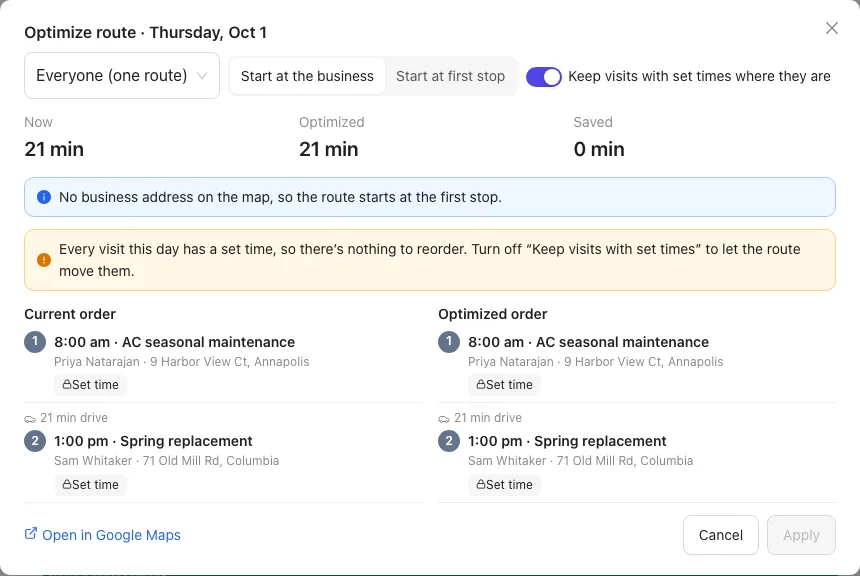
Click Open in Google Maps for driving directions through every stop in the optimized order.
Visits with a set time
By default, Keep visits with set times where they are is on. Visits booked for a set time stay put (tagged Set time) and the route works around them. If every visit that day has a set time, you'll see that there's nothing to reorder; turn the switch off to let the route move them.
Completed visits are tagged Done and stay where they are.
Warnings you might see
- No business address on the map, so the route starts at the first stop. Add your address in Settings → Branding to start from the business.
- Some set-time visits can't be reached on time: the drive between them is longer than the gap.
- The route runs past closing: the day ends after your business hours (from Settings → Online booking).
- Not on the map, left as they are: visits whose job has no map location. Open the job, start typing the Service address and pick it from the suggestions, then click Save.
- This day is already in the best order. Nothing to change.
Who can use it
Owners and office staff can optimize and apply a route for anyone. Crew can preview their own day but not apply it; they'll see Close instead of Apply.