See your route on a map
The day's stops on a map in time order, with drive times between them, one tap to navigate, and Optimize to find a shorter drive.
Included on the Pro plan and up. Compare plans
The route map shows a day's visits on a map, numbered in the order they're booked, with the driving route and time between each stop.
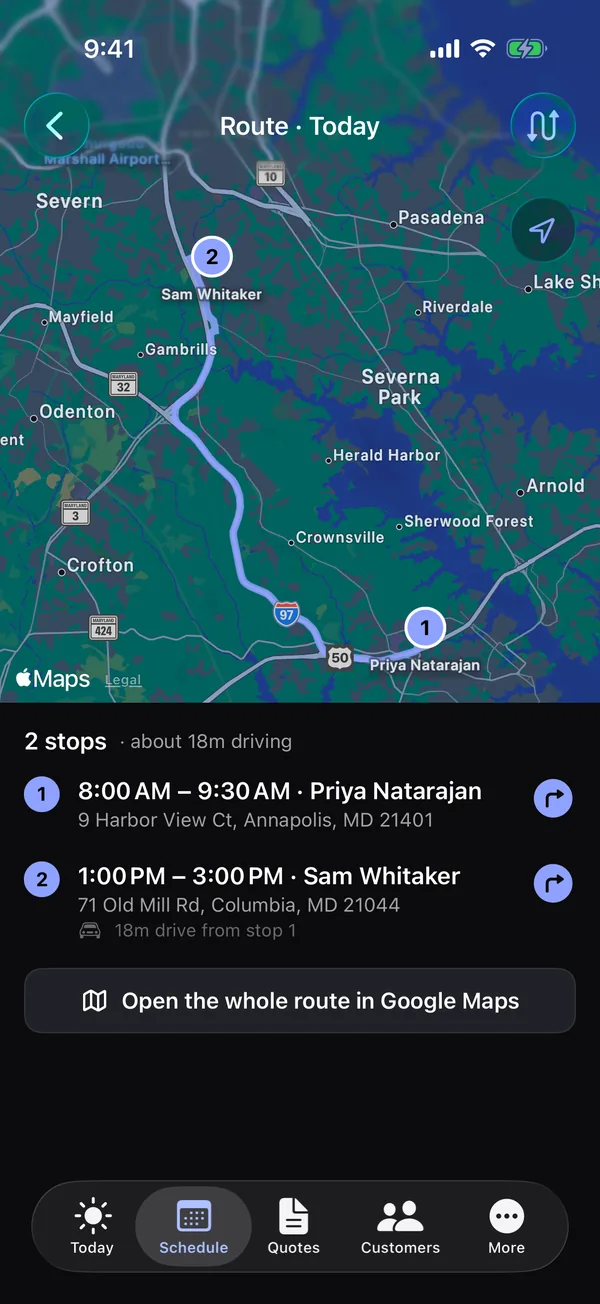
Open the map
- On Today, tap Map next to your visits. It shows your stops for today, or the whole team's if you've switched to Everyone.
- On Schedule, pick a day and tap Map to see that day's stops.
What you'll see
- Numbered pins for each stop, in time order. Finished visits turn green.
- The driving route between stops, drawn on the map.
- Under the map, the number of stops and about how long you'll spend driving.
- Each stop's time, customer and address, and the drive time from the stop before.
Tap a stop in the list to zoom to it. Tap the arrow icon next to a stop to get directions there in Apple Maps.
Navigate the whole day
Tap Open the whole route in Google Maps to load every stop, in order, as one trip starting from where you are. This button shows when the day has more than one stop.
Optimize the order
When a day has more than one stop, tap Optimize at the top right. The app works out the shortest driving order and shows:
- How much driving it saves, and the drive time now and optimized.
- The Optimized order, with the drive to each stop. Visits booked for a set time show Set time and stay where they are.
If every visit has a set time, it says there's nothing to reorder. If the order is already the best, it says so.
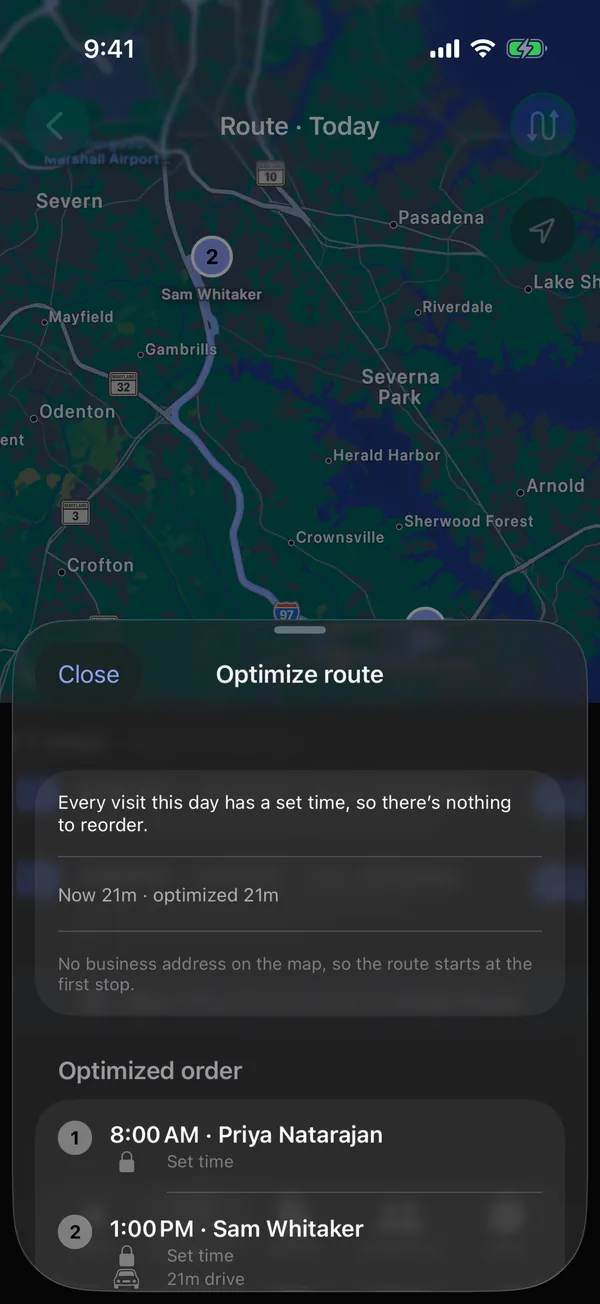
Owners and office staff can tap Apply to put the visits in the new order; crew can look but not apply. Tap Close to leave things as they are. Optimize is included on Pro and Growth.
When a stop is missing
The map uses each job's service address. If an address is highlighted in the list and has no pin, it couldn't be found on the map. Fix the job's Service address on the web (Work → Jobs, open the job) so the map can find it.