The app for crews
What someone with the Crew role sees: their day, their visits, their clock and their own time. No prices.
Someone with the Crew role gets a simpler app: their own visits, the clock and their time. They don't see prices, quotes or invoices. Office staff and owners see the same screens plus more.
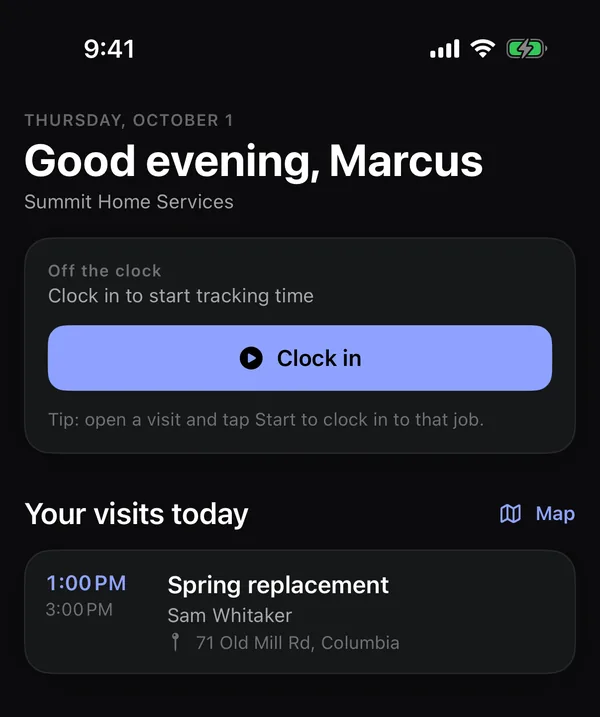
Their tabs
- Today: the clock and Your visits today. Tap Map to see the day's stops (Pro plan). See Today and the time clock.
- Schedule: their own visits for the week. See Your schedule in the app.
- Customers: look up a customer, call or text them, add a new one, or fill in their details.
- More: Jobs, Requests, Timesheets, Expenses, their account and help.
Work a visit
Open a visit from Today or the Schedule. From top to bottom:
- Directions, Call and Text the customer, and On my way to tell them you're coming.
- Start · clock in to start the clock on this job.
- Read the Instructions and tick off the Checklist.
- Type Visit notes and tap Save notes.
- Add photo: before and after shots help the office and the customer.
- Mark visit complete. This also stops the clock if it was on this visit.
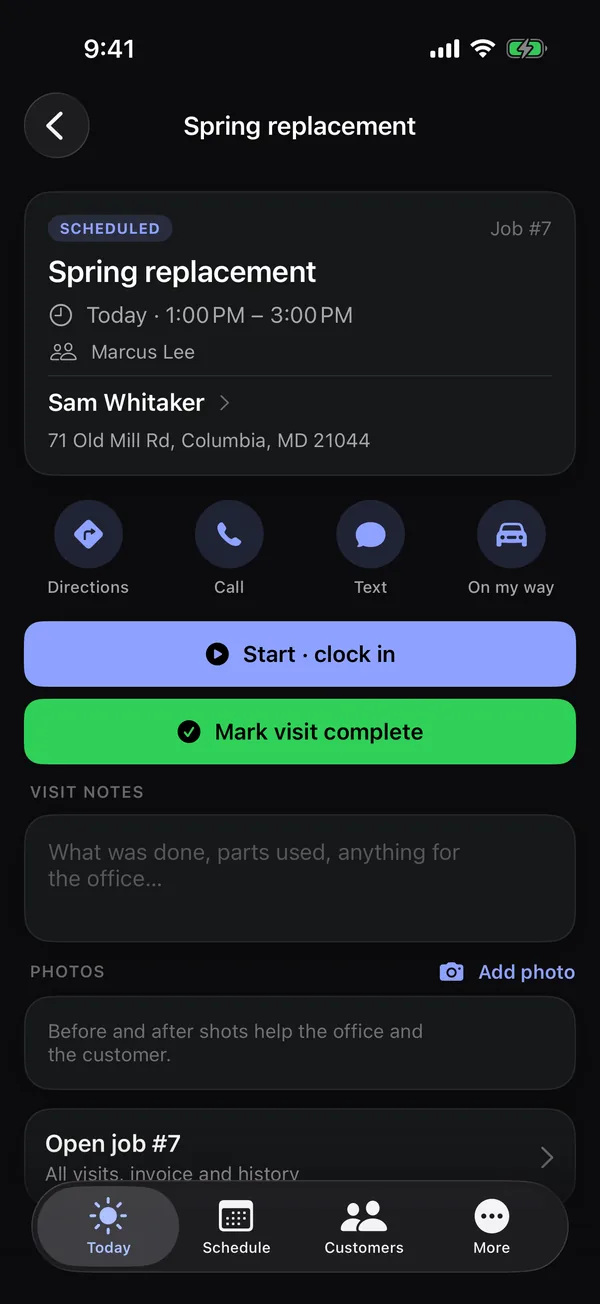
See Work a visit for every detail.
What crew can't do
- See prices, totals, invoices, quotes or the pipeline.
- Reschedule, reassign or add visits, or mark a whole job complete. Ask the office.
- See other people's time. Their own hours are in More → Timesheets.
- Remove photos someone else took.
- Turn a request into a quote. They can call, text and update a request's status.
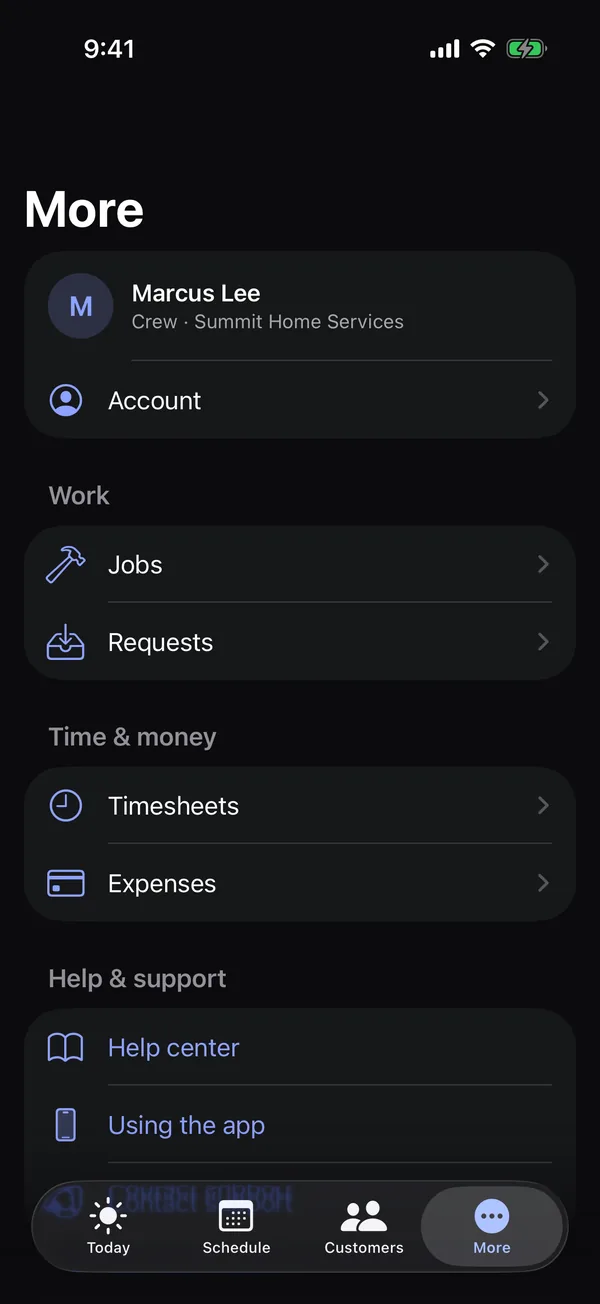
Their time and expenses
- Timesheets: their hours this week. Tap + to add time they forgot to clock.
- Expenses: log a receipt (Pro plan).
See Timesheets and expenses in the app.
Tip: No signal at the job? On Pro and Growth the app keeps working and syncs later. See Work offline with no signal.