Requests in the app
See new work from your website, bookings and calls, contact the customer, log a phone call, and turn a request into a quote.
Open More → Requests to see new work coming in: your website's contact form, the Client Hub, online bookings, and calls you log yourself.
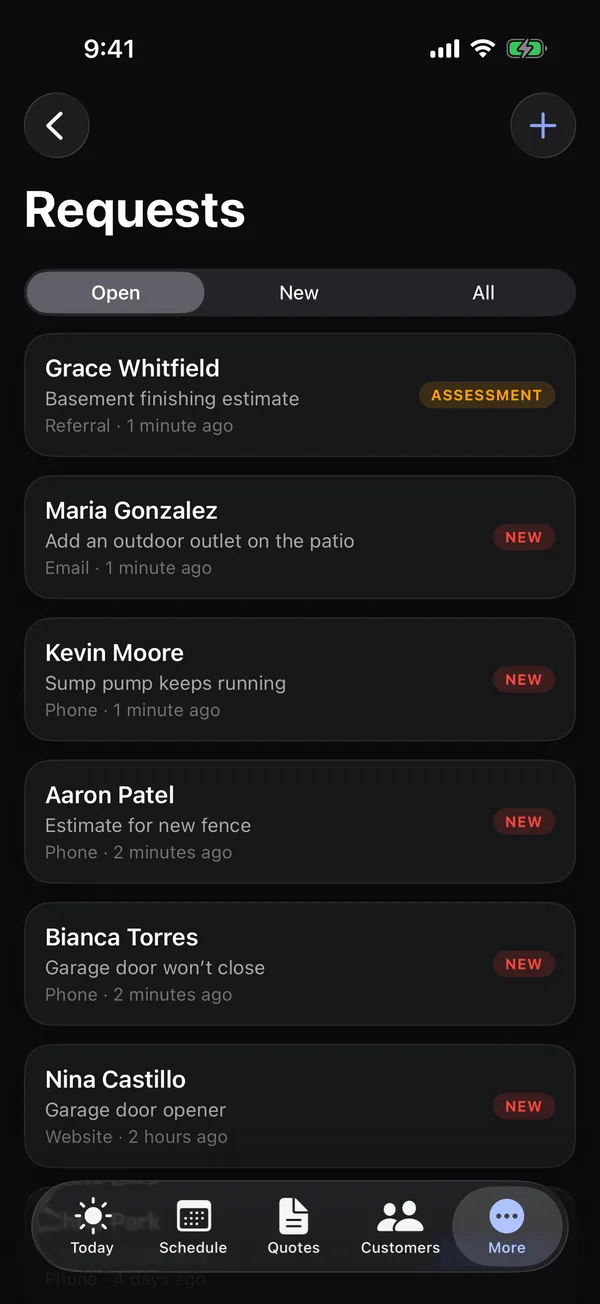
The list
Switch between Open (new, contacted and assessments), New and All. Each request shows who it's from, what they need, where it came from and how long ago. Tap one to open it.
Open a request
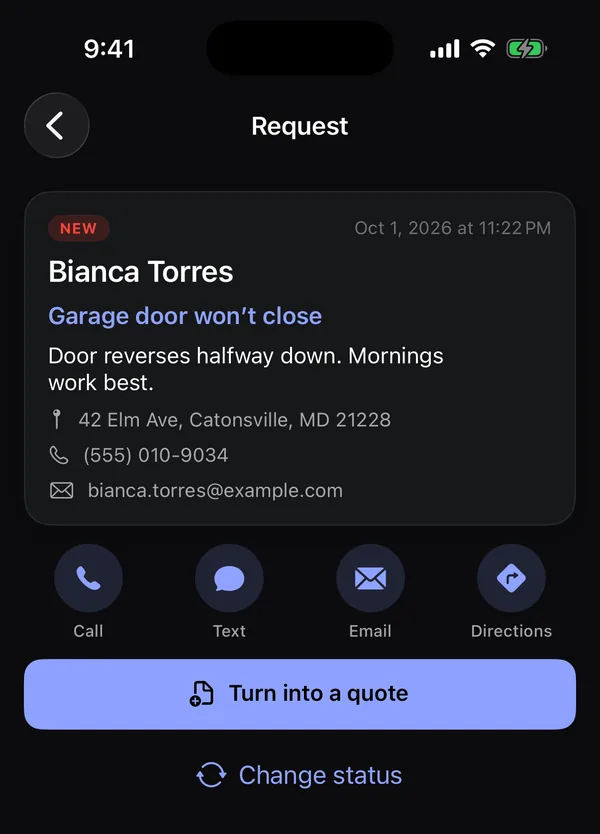
You'll see what they need, their message, address, preferred time, any assessment visit, and their phone and email.
- Call, Text or Email them. Doing this on a New request marks it Contacted for you.
- Directions opens Apple Maps.
- Turn into a quote creates a quote from the request and opens it (if you can work on quotes).
- Open quote and Open customer appear once those exist.
- Change status sets it to New, Contacted, Assessment, Converted or Archived.
Log a phone call or walk-in
- Tap +.
- Under Who, type their name, phone, email and address.
- Under What they need, type the service and details, and pick How they reached you.
- Tap Save.
You'll get a notification when a request comes in from your website or Client Hub. See Push notifications and The requests inbox.