Timesheets and expenses in the app
Check your hours, add time you forgot to clock, approve the team's weeks, and snap receipts for expenses.
Both are under More → Time & money.
Timesheets
More → Timesheets shows one week at a time. Use the arrows to change weeks.
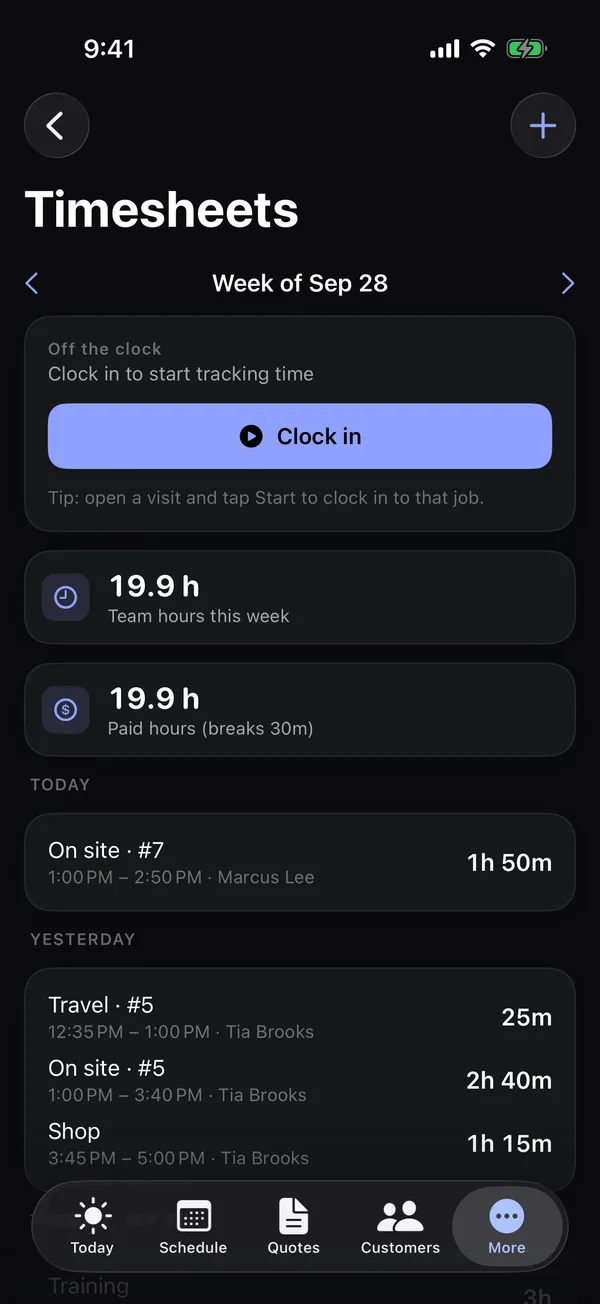
- The clock card, so you can clock in or out from here.
- Your hours this week. Owners and office staff see the whole team's hours, with each person's name on their entries.
- Paid hours and break time, if your business uses breaks and time types.
- Each day's entries: the kind of time, the job number, start and end, and how long. Running means the clock is still going. A green lock means the week was approved.
Add time you forgot to clock
- Tap +.
- Pick the Type: Job, Driving, Shop or Break. For job time, pick the Job.
- Set the Start and End, add Notes if you like, and tap Save.
Pay report and approvals
On the Growth plan, owners and office staff also see the Pay report for the week: each person's regular hours, overtime and gross pay (from their pay rate). Breaks are unpaid; over 40 hours is overtime at 1.5×.
- Tap Approve to lock a person's week. It isn't available while they're on the clock.
- Tap Approved to reopen it.
See Time tracking and timesheets.
Expenses
On Pro and Growth, More → Expenses lists the last 30 days of expenses and their total. A paperclip means there's a receipt; tap the expense to see it.
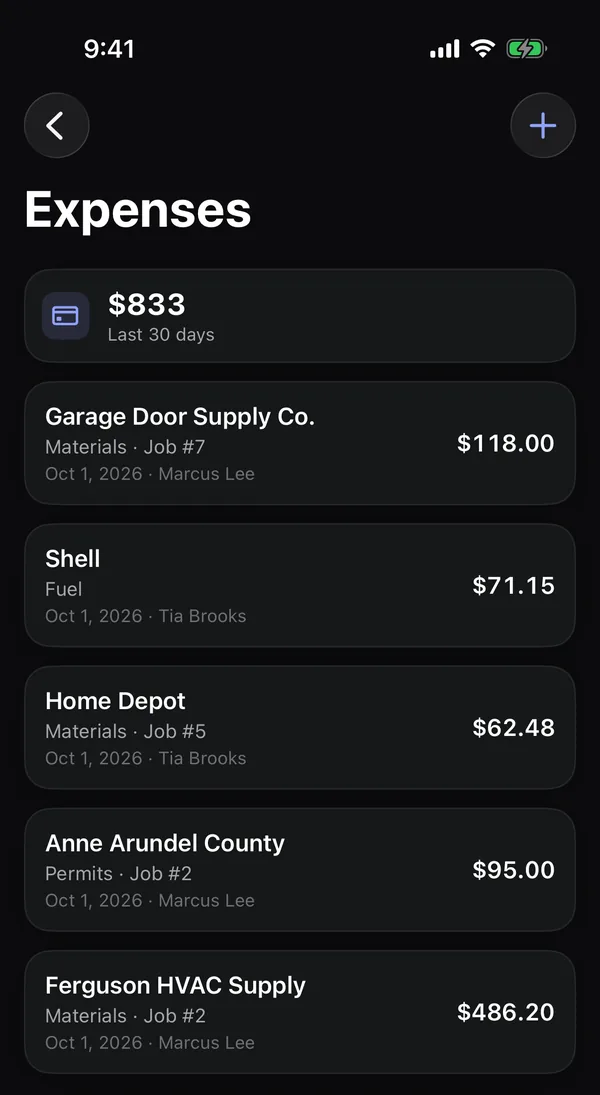
To log one:
- Tap +.
- Type the Amount and Where (vendor).
- Pick the Category (materials, fuel, equipment, subcontractor, permits or other), the Date and, if it's for one, the Job.
- Type What for.
- Tap Add receipt photo to take a photo or pick one.
- Tap Save.
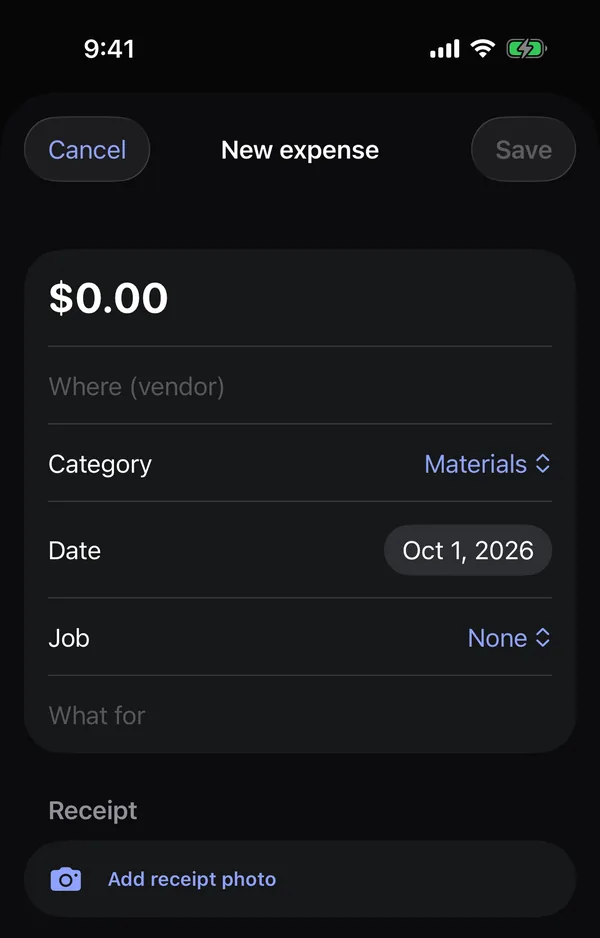
Expenses on a job count toward its profit in job costing. See Log expenses and receipts.