Team, roles and the catalog in the app
Add people, change roles, turn off a sign-in, and keep your catalog of items and prices up to date from your phone.
Both are under More → Business.
Team & roles
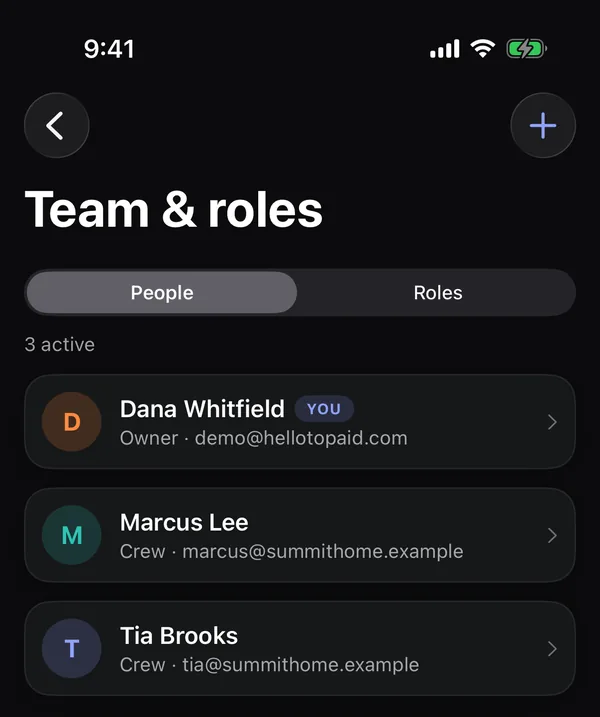
More → Team & roles is for people whose role includes managing the team (Owners, by default). The People list shows everyone, their role and email, and how many are active on your plan.
Add a person
- Tap +, then Add person.
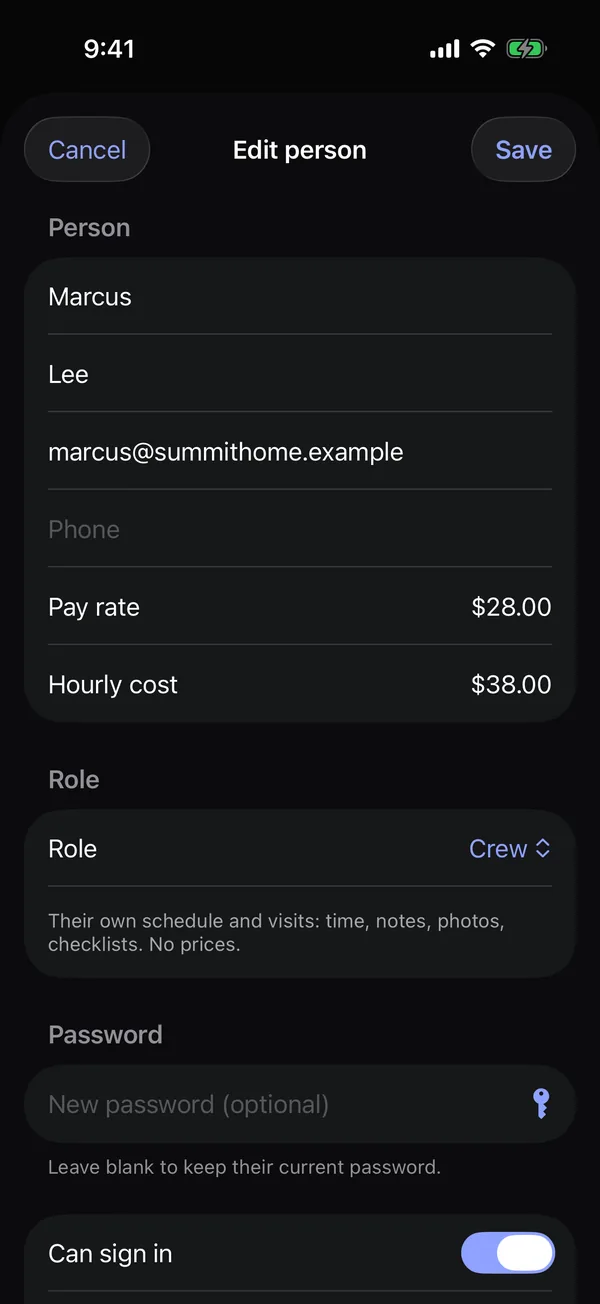
- Type their first and last name, Email (their sign-in) and phone. Add a Pay rate and Hourly cost if you use the pay report or job costing.
- Pick their Role. The role's description shows underneath.
- Tap Save. We email them an invitation to set their password.
Add person is greyed out when you've used every seat on your plan.
Change someone
Tap a person to edit them.
- Change their details or Role.
- Type a New password for them, or tap the key to make one up. Leave it blank to keep their password.
- Turn off Can sign in to stop them signing in without removing them.
- Tap Remove from team to take them off. Their past visits, time and notes stay on record.
Roles
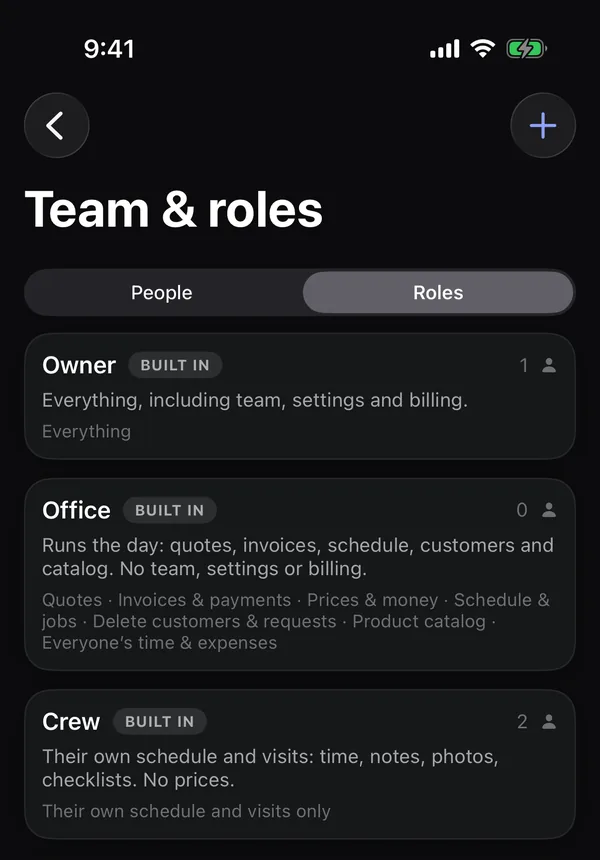
Tap Roles to see each role, how many people have it and what it can do. Built-in roles (Owner, Office, Crew) can't be changed; tap one and Make a custom copy to start your own. On Growth, tap +, then New role to make one from scratch. Pick what it can do and tap Save. See Roles and permissions and Custom roles.
Product catalog
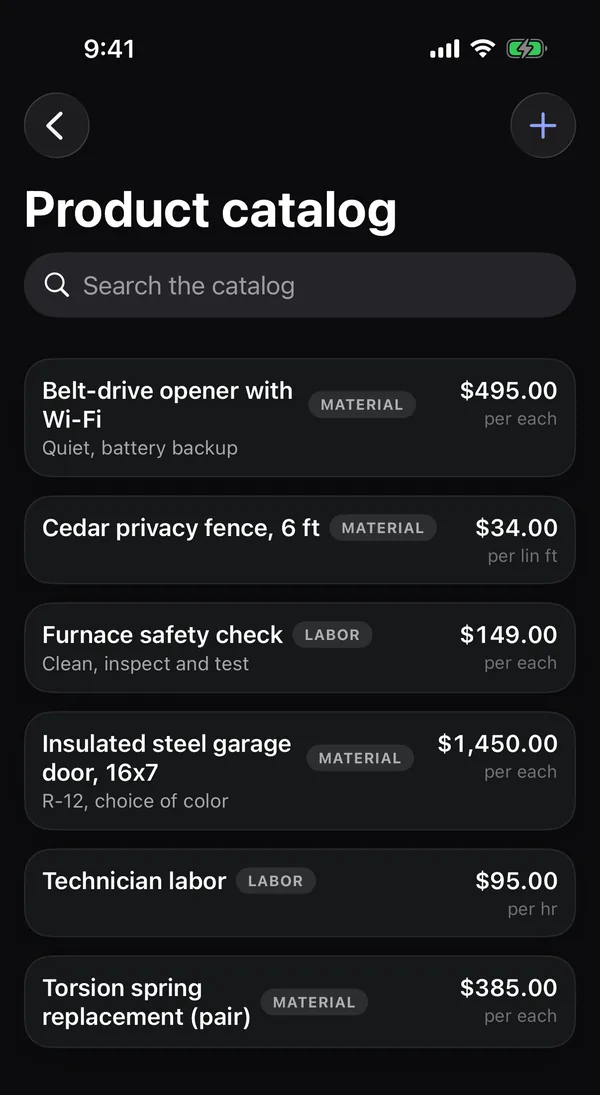
More → Product catalog lists the items and services you quote again and again, with their prices. Search at the top.
People who can manage the catalog can:
- Tap + to add an item: name, description, Price, Unit (each, hr, ft…) and Type (Material or Labor). Tap Save.
- Tap an item to change it, or Delete from catalog. Quotes that already use it keep their copy.
Everyone who builds quotes can pick from it with Add from catalog. See Product catalog.