Invoices and payments in the app
See what's owed, send an invoice, record a check or cash, and confirm Zelle, Venmo and PayPal payments when they arrive.
Open More → Invoices, or tap Owed to you on Today. Invoices are for people whose role includes invoices and payments.
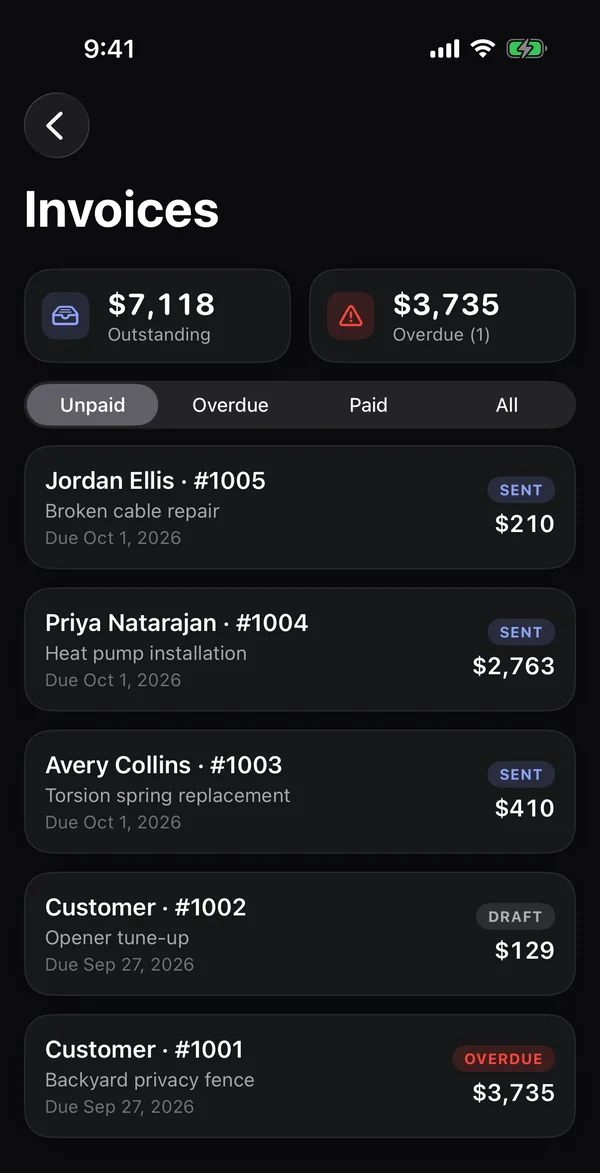
The list
At the top: Outstanding (everything unpaid) and Overdue, with how many. Switch between Unpaid, Overdue, Paid and All. Each invoice shows the customer, its number, when it's due, its status and what's still owed.
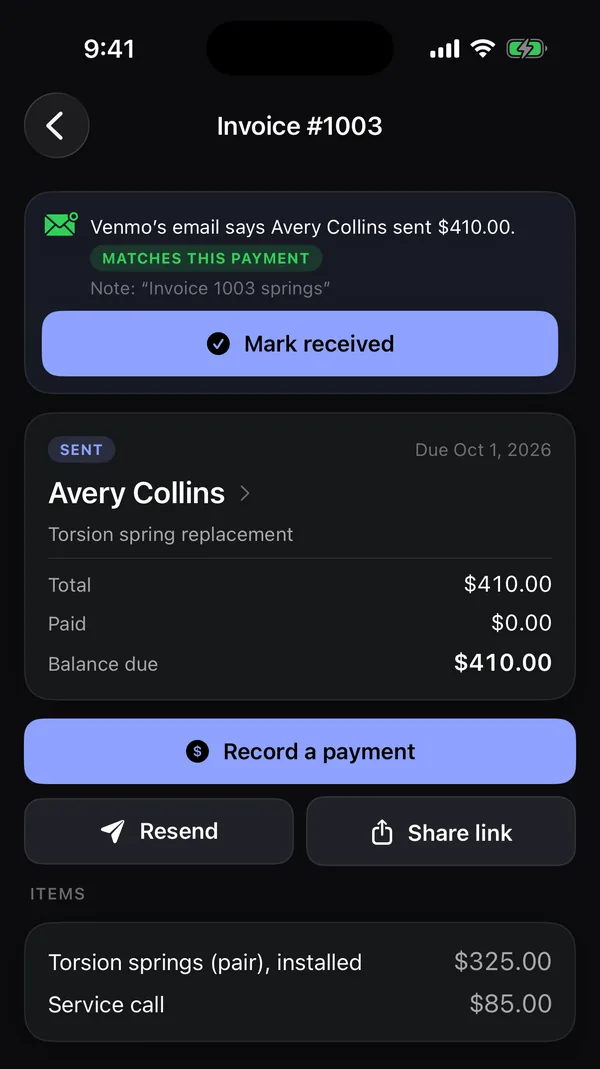
Open an invoice
You'll see the status and due date, the Total, what's been Paid, the Balance due, the items and every payment. Tips show under the payment they came with, and as Tips (not in the total).
Make an invoice
In the app, invoices are made from a job: open the job and tap Create invoice. See Jobs in the app. Other invoices are made on the web. See Create and send an invoice.
Send it
- Tap Send (or Resend) to email it to the customer.
- Tap Share link to text or message the invoice link yourself.
Record a payment
For a check, cash, a card you took in person, or a bank transfer:
- Tap Record a payment.
- Check the amount. It starts at the balance due; change it for a partial payment.
- Pick the Method and add a Note, like the check number.
- Leave Email a receipt on to send the customer a receipt (it shows if they have an email).
- Tap Save.
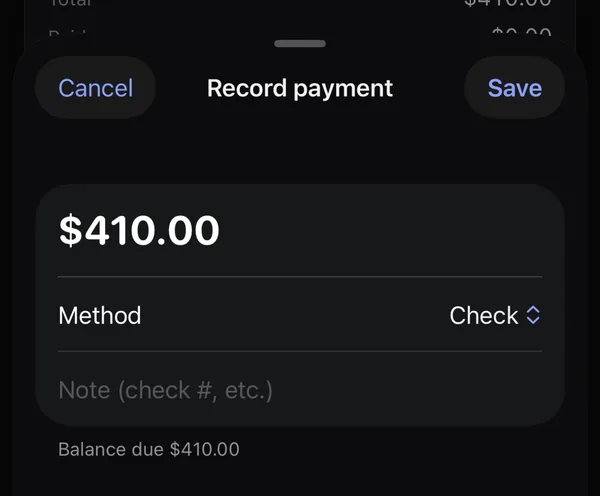
See Record a payment.
Confirm a Zelle, Venmo or PayPal payment
When a customer pays by Zelle, Venmo or PayPal from your invoice and taps that they've sent it, the invoice shows a card at the top: "Avery Collins says they sent $410.00 by Venmo". You get a notification too.
- Check your Zelle, Venmo or PayPal account and make sure the money is there. These apps don't tell Hello to Paid when money arrives.
- Tap Mark received, then Mark received again to confirm.
The payment is recorded and the customer gets a receipt.
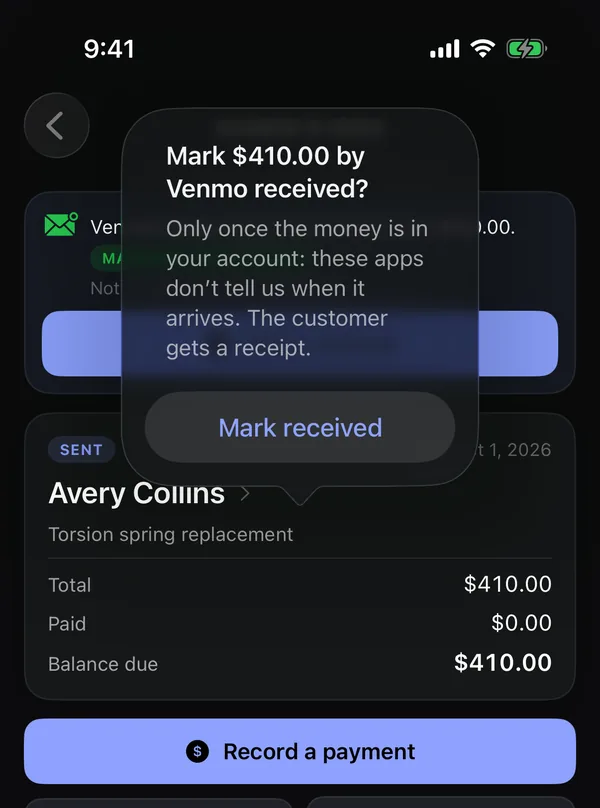
Payment emails
If your business forwards its Venmo, PayPal and bank payment emails to Hello to Paid, the card shows what the email says, for example "Venmo's email says Avery Collins sent $410.00", with the note they wrote. A green Matches this payment badge means the email matches what the customer said they sent. An orange Same amount: check it's theirs badge means only the amount matched, so check who sent it before tapping Mark received.
When a match is strong and your business has auto-confirm on, the payment is marked received for you and you're notified. Payment emails are set up on the web, in Settings.