Install the iPhone and iPad app
The app is in early access through Apple TestFlight. Here's how to get an invite, install it and sign in.
The Hello to Paid app for iPhone and iPad is in early access. It isn't on the public App Store yet; you install it through Apple's TestFlight app instead. It needs iOS 17 or later and works on every plan.
Get the app
- Contact support and ask for an app invitation. Tell us the email address of everyone who needs it.
- Watch for an email from TestFlight and open it on your iPhone or iPad.
- Install TestFlight from the App Store if you don't have it.
- In the email, tap View in TestFlight (or use the redeem code in TestFlight), then tap Install.
- Open Hello to Paid.
Updates arrive through TestFlight. Turn on automatic updates in TestFlight so you always have the latest version. Your version number is at the bottom of the More tab.
Sign in
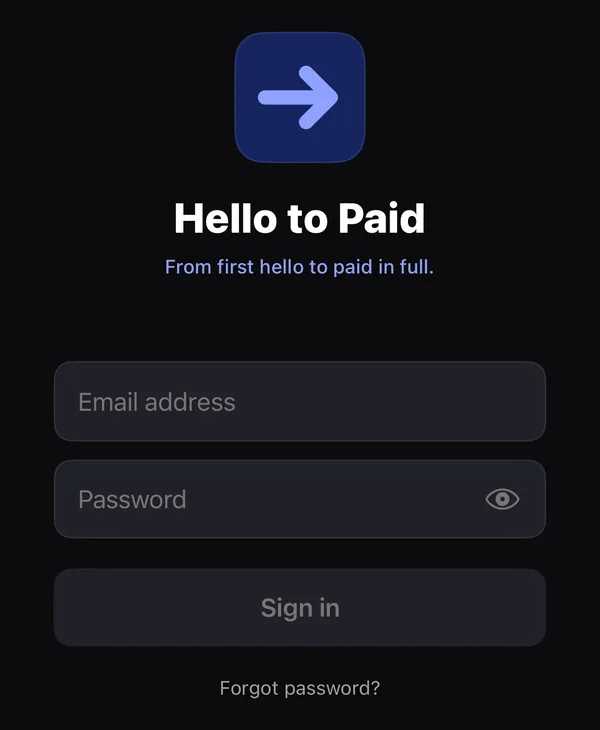
- Type the same email and password you use on the web. There's no separate app account.
- Tap the eye icon if you want to check what you typed.
- Tap Sign in.
- Your team members use the sign-in you gave them in Settings → Team & roles. See Add and remove people.
- Forgot your password? Tap Forgot password? It opens the reset page on the web.
- The first time you sign in, the app asks to send notifications. Tap Allow to get alerts. See Push notifications.
You stay signed in until you tap More → Sign out. If your session runs out, the app shows "Your session expired. Please sign in again."
Can't sign in? See The app won't sign in.
"The app isn't in your plan"
If you see this screen after signing in, your business's plan doesn't include the app. Everything still works on the web. Owners can tap See plans on the web to change the plan; tap Check again after upgrading.
On Android, or without the app
The web app works in any phone browser. Go to app.hellotopaid.com and sign in. You can add it to your home screen so it opens like an app:
- iPhone (Safari): tap the share button, then Add to Home Screen.
- Android (Chrome): tap the menu, then Install app or Add to Home screen.