Quotes in the app
Write a quote on site, add choices and photos, send it or get it signed on your phone, then turn it into a job.
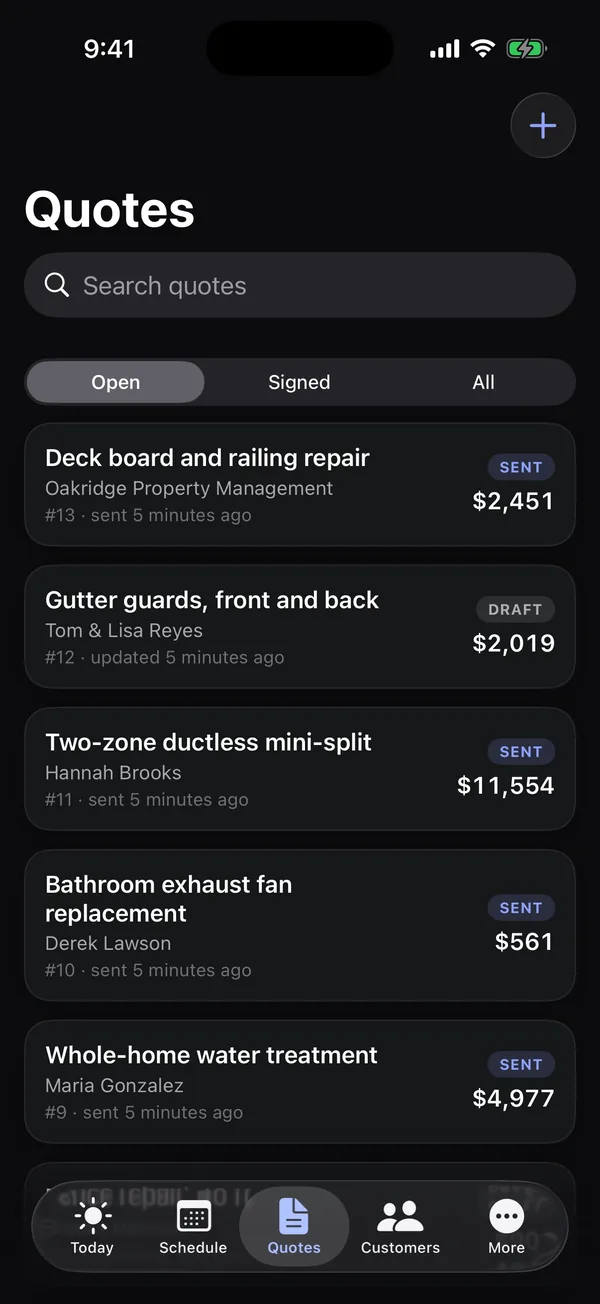
The Quotes tab lists your quotes. (The web menu calls them Proposals.) It's there for owners, office staff and anyone whose role can work on quotes.
Find a quote
Switch between Open, Signed and All, or search by title, customer or quote number. Each quote shows its status (Draft, Sent, Signed, Expired), when it was sent or signed, and its total.
Open a quote
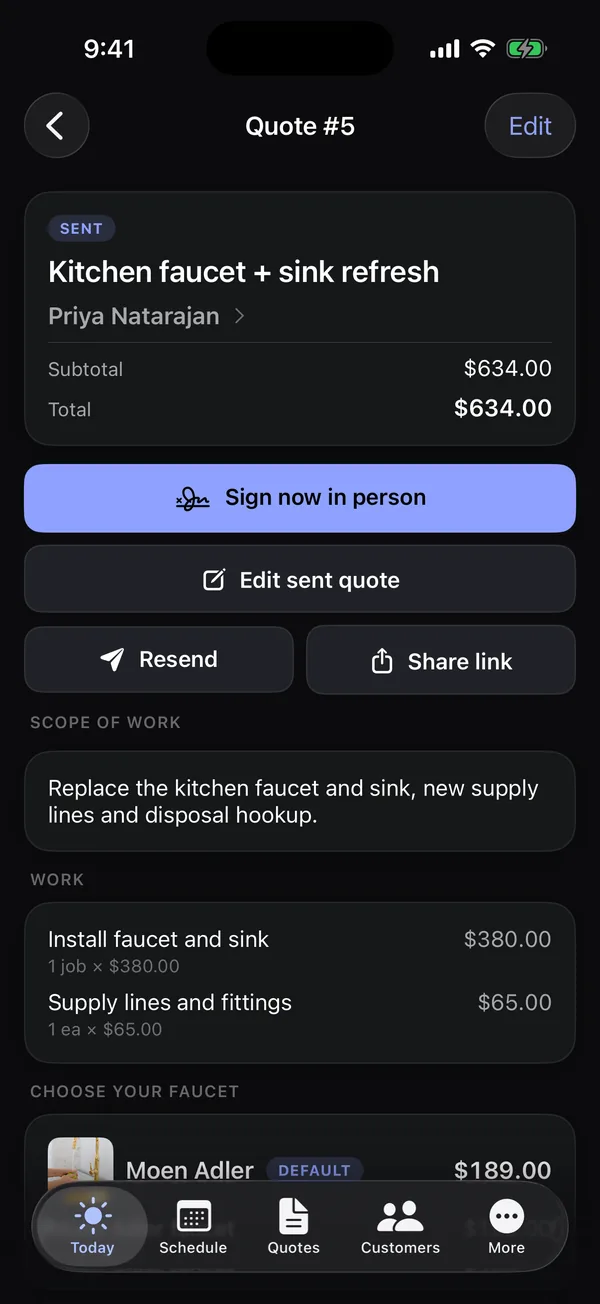
Tap a quote to see its status, customer, totals and deposit, the scope of work, each group of line items and choices, and photos. The buttons under the totals change with the quote's status.
Start a new quote
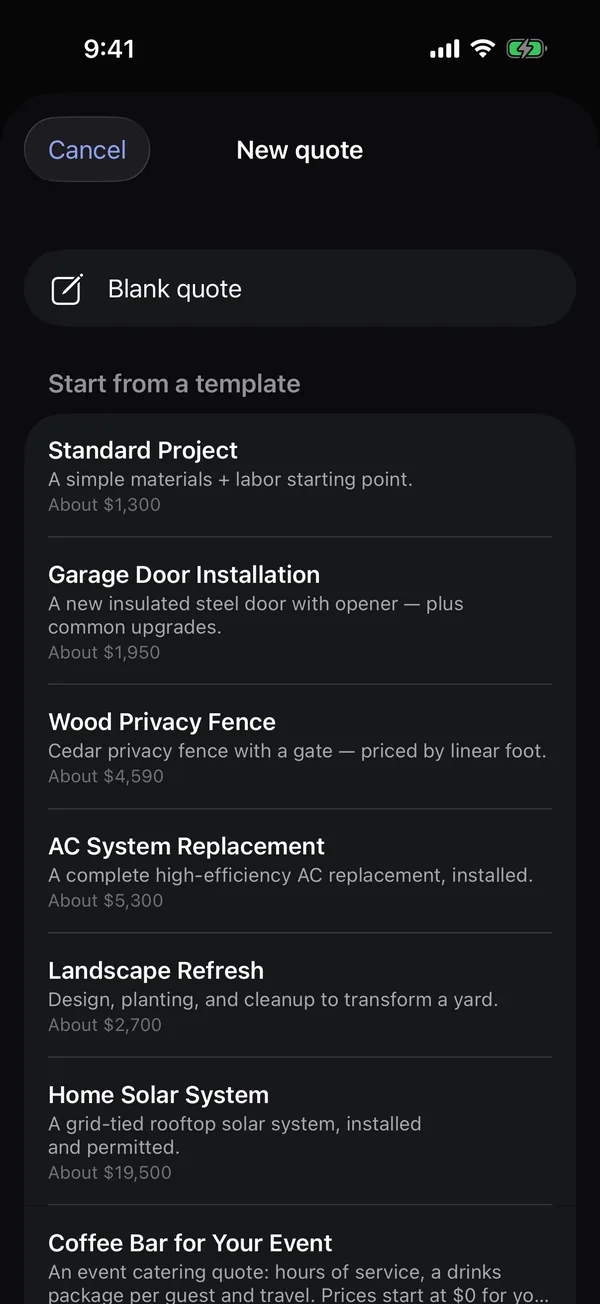
- Tap +.
- Tap Blank quote, or pick one under Start from a template.
- The quote opens. Tap Edit quote to fill it in.
You can also start one from a customer (New quote for …) or a request (Turn into a quote).
Edit a quote
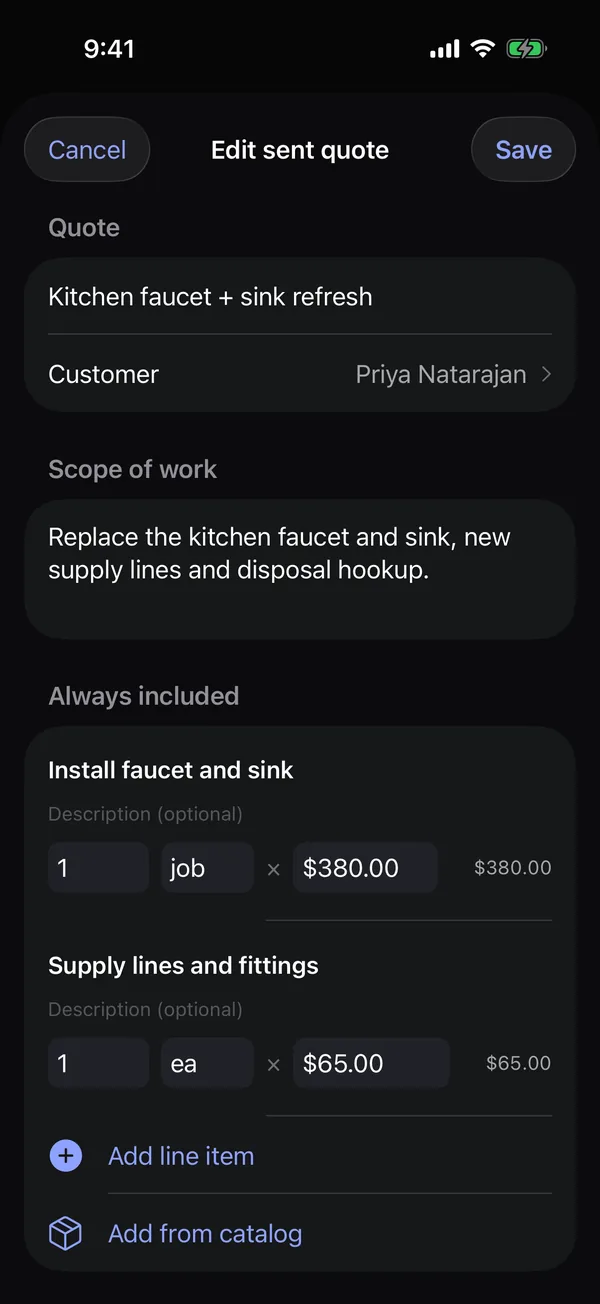
Open the quote and tap Edit (or Edit quote / Edit sent quote).
- Give it a title and tap Customer to choose one, or add a new customer from there.
- Write the Scope of work.
- Under Always included, tap Add line item and fill in the item, quantity, unit and price. Or tap Add from catalog to pick a saved item. Swipe left on a line to delete it.
- Set the Tax rate and a Deposit as a % or $ amount. The subtotal shows underneath.
- Tap Save.
Choices and optional items
On Pro and Growth, you can give the customer options:
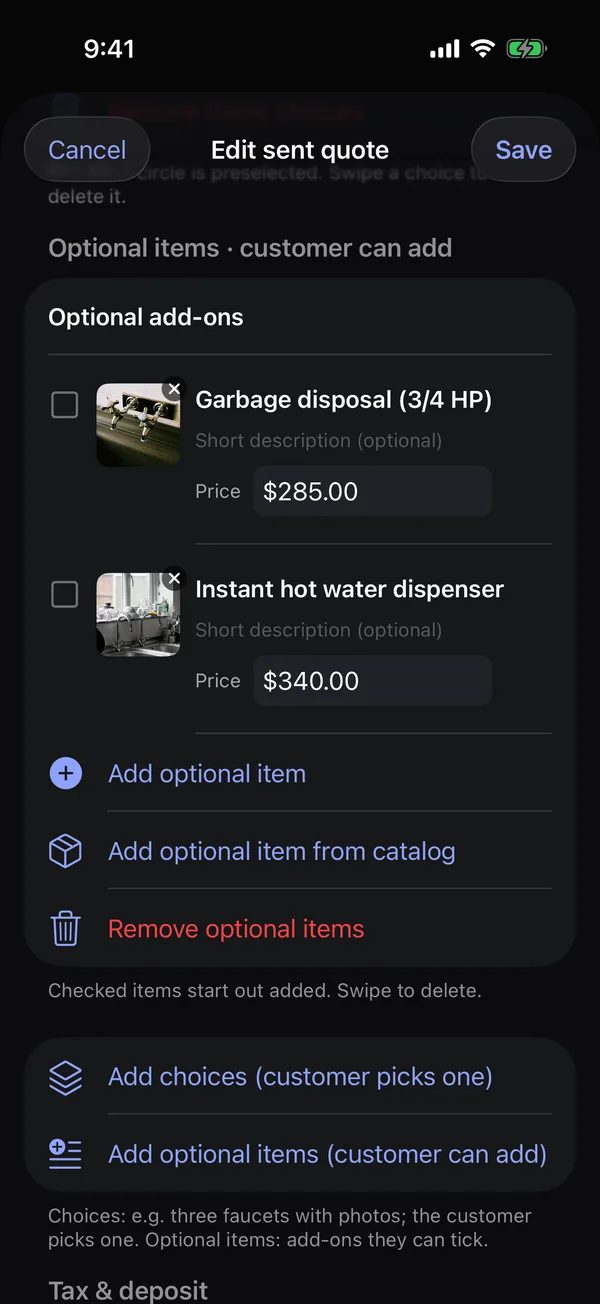
- Add choices (customer picks one): for example three faucets, each with its own photo and price. The filled circle is the one preselected.
- Add optional items (customer can add): add-ons they can tick, like a garbage disposal. Checked items start out added.
Tap the camera square next to a choice to add its photo. Give each group a heading, like "Choose your faucet". A choice made of several line items shows "edit its items on the web". See Choices and optional items.
Send it
- Tap Email to email it to the customer (it needs a customer). Tap Resend to send it again.
- Or tap Get link, then Share link to text or message it yourself.
Sign it in person
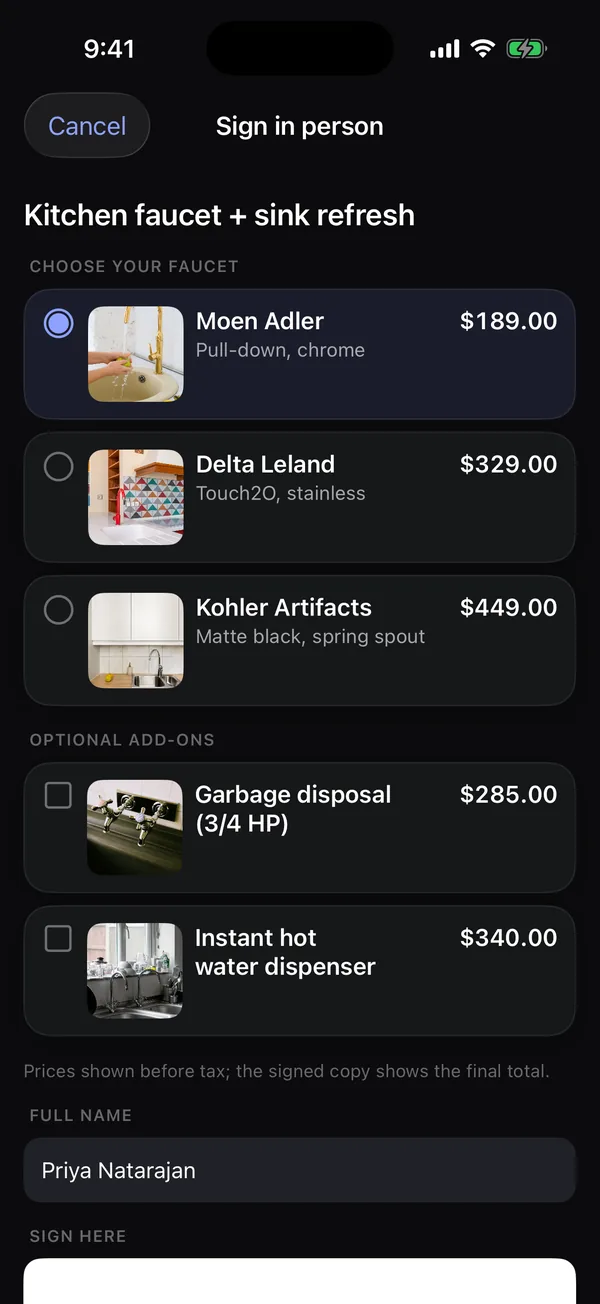
- Tap Sign now in person and hand over your phone or iPad. (The button works once the quote has a total.)
- Your customer picks their choices and add-ons, checks their name, signs with a finger and turns on the agreement switch.
- They tap Accept and sign.
A draft quote is published first, without emailing the customer. The signed copy is saved the same way as when they sign online. See E-signatures and signing in person.
After it's signed
The quote shows who signed and when. Tap Create job to make the job, or Open job if it exists. If there's an invoice, Open invoice takes you there. See Turn a signed quote into a job.
Photos
Tap Add photo under Photos to add pictures of the site. Photos can be added until the quote is signed.