Today and the time clock
The first screen in the app: clock in and out, see today's visits, and check what's owed and paid.
Today opens first every time. It shows your clock, today's visits and, for people who see money, how the business is doing.
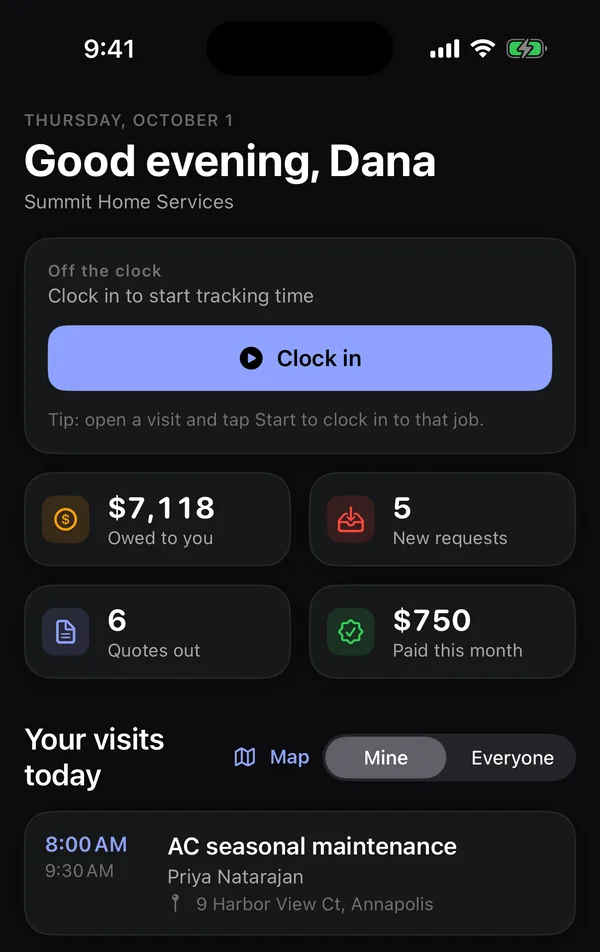
Clock in
- Tap Clock in.
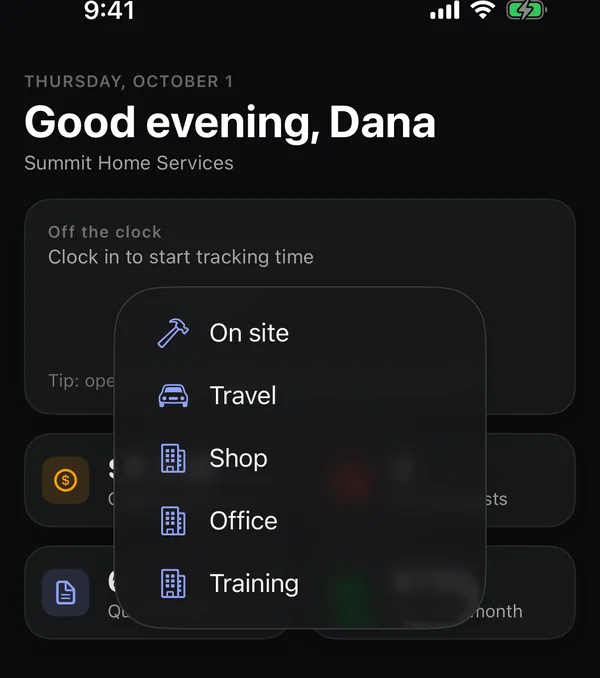
- Pick what you're doing. You'll see General work, Driving or Shop / office, or your business's own time types (like On site, Travel, Shop) if it uses them.
- The card turns green and a timer runs.
To clock in to a particular job, open the visit and tap Start · clock in instead. The clock card then shows the job's name and number. See Work a visit.
Clock out
Tap Clock out on the clock card. Your time goes on your timesheet. See Timesheets and expenses in the app.
If your business uses breaks and time types, the clock card also has Break and a button to switch the kind of time. See Breaks and time types.
Today's visits
Your visits today lists the visits you're on, in time order. Tap one to open it. Done visits are crossed out with a green check; a visit someone's on the way to shows On the way. A visit marked Assessment is a visit to look at a new request; tap it to open the request.
- Office staff and owners can switch Mine / Everyone to see the whole team's day, with who's on each visit.
- Tap Map to see the day's stops on a map. See See your route on a map.
The money tiles
People who can see prices also get four tiles:
| Tile | What it shows |
|---|---|
| Owed to you | Unpaid invoice balances. It turns orange when something is overdue. Tap it to open Invoices. |
| New requests | Requests nobody has handled yet. Tap it to open Requests. |
| Quotes out | Quotes sent and waiting for a signature. |
| Paid this month | Money collected this month. |