Work a visit
Get directions, tell the customer you're on the way, clock in, tick the checklist, add notes and photos, and mark the visit complete.
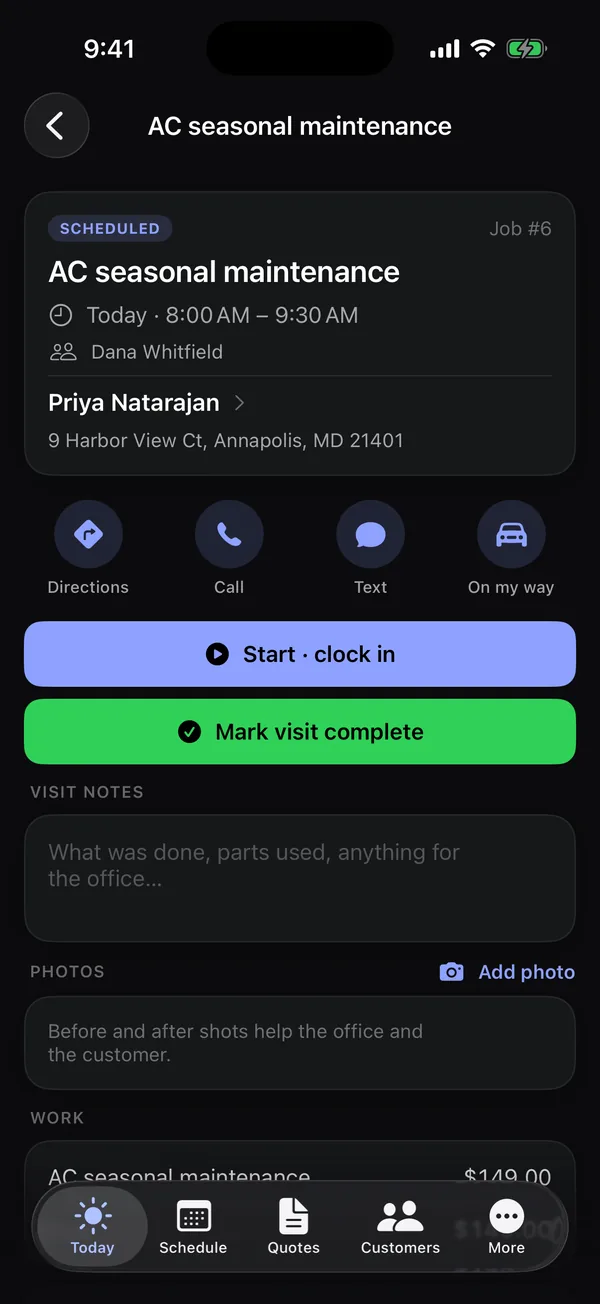
A visit is one trip to a job. Open it from Today, the Schedule or a job. Everything for the visit is on one screen, top to bottom.
At the top
The visit's status (Scheduled, On the way, Completed), the time, who's on it, and the customer and address. Tap the customer's name to open their details. At the bottom, Open job # shows the whole job: all its visits, the invoice and history.
Get there
- Directions opens Apple Maps to the address.
- Call and Text contact the customer.
- On my way tells the customer you're coming.
Tell the customer you're on the way
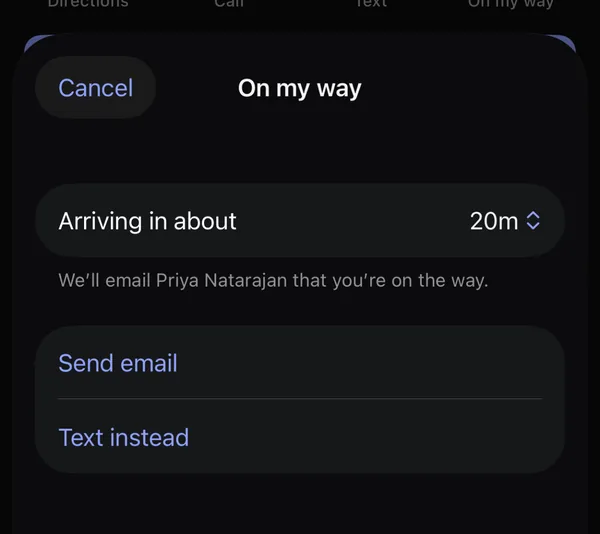
- Tap On my way.
- Pick Arriving in about (5 minutes to an hour and a half).
- Tap Send email. The customer gets an email from your business with the arrival time, and the visit shows On the way.
No email for this customer? Tap Text instead. It opens Messages with a ready-written text saying who you are, that you're on your way, and about when you'll arrive. Check it and tap send.
Do the work
- Tap Start · clock in to start your clock on this visit. If you're already clocked in to something else, the button says Switch clock to this visit. Tap Stop clock to stop.
- Read the Instructions from the office.
- Tick off the Checklist. The heading counts how many are done.
- Type Visit notes: what was done, parts used, anything for the office. Tap Save notes.
- Tap Add photo in Photos, then Take photo or Choose from library. Photos are saved to the job and tagged with this visit.
Tap a photo to see it full screen. The trash icon removes it; crew can only remove photos they took.
Finish
Tap Mark visit complete. If your clock is running on this visit, it stops too.
Marked it complete by mistake? Tap Reopen visit.
People who see prices also see the Work on the job and its total, near the bottom.