Jobs in the app
Find a job, see all its visits, add a visit, fill in its details, mark it complete and create the invoice.
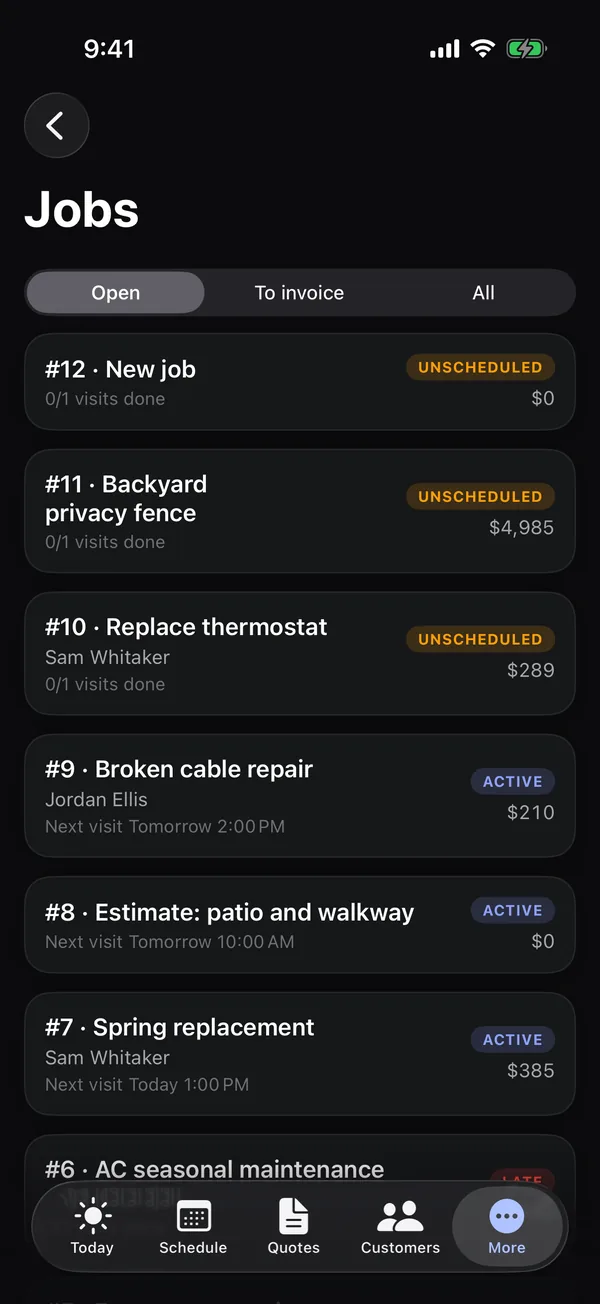
Open More → Jobs to see every job. You can also reach a job from a visit (Open job #), a customer or a signed quote.
Find a job
- Switch between Open, To invoice (finished jobs waiting for an invoice) and All.
- Pull down to show the search box and search by title, customer or job number.
Each job shows its status (Active, Late, Unscheduled, Needs invoice, Done), the next visit or how many visits are done, and its total if you see prices.
On a job
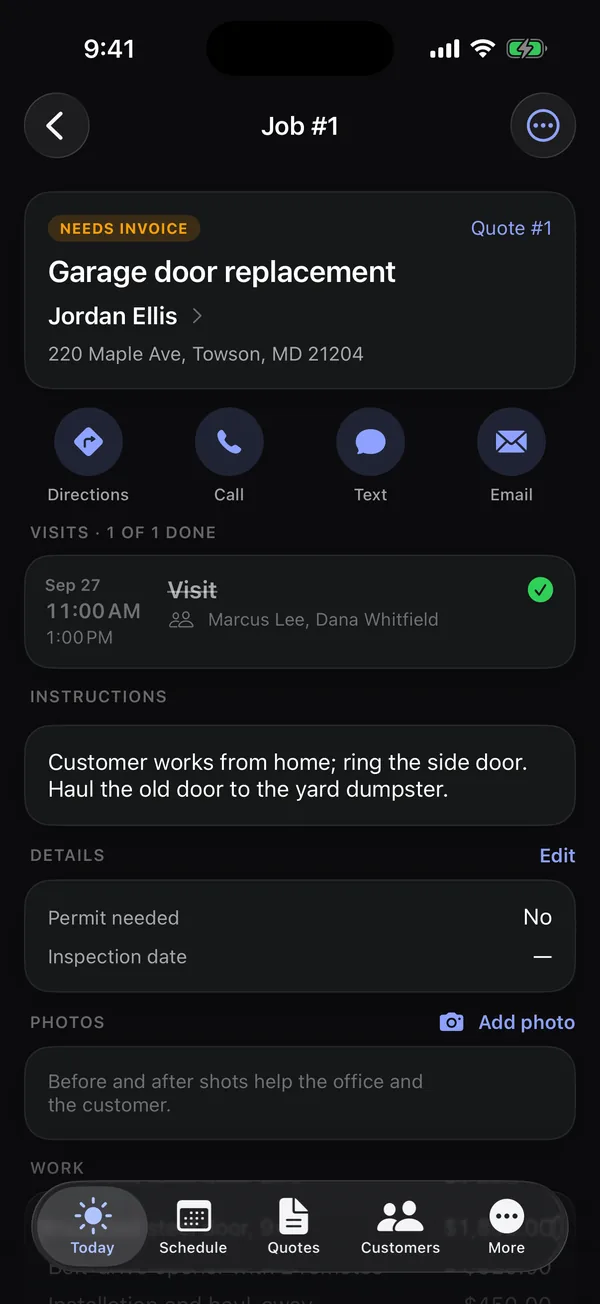
- Directions, Call, Text and Email for the customer.
- Visits, with how many are done. Tap one to work it. Recurring jobs show the next few visits and the last few done.
- Instructions for the crew.
- Details: your business's own fields. See below.
- Photos from every visit. Tap Add photo to add one.
- If you see prices: the Work and its total, and Billing.
Add a visit
Owners and office staff:
- Tap … at the top right, then Add visit.
- Set when it Starts and its Length.
- Under Who, tap the people to send.
- Tap Add. Anyone you added gets a notification.
Mark the job complete
Tap …, then Mark job complete. To undo it, tap …, then Reopen job.
Create the invoice
In Billing, tap Create invoice. The invoice opens so you can send it. Once a job has an invoice, Billing lists it with what's still due. See Invoices and payments in the app.
Details (custom fields)
On Pro and Growth, the Details card shows the fields your business added on the web, like a permit number or an inspection date. Owners and office staff tap Edit, fill them in and tap Save. Fields marked * are required. A field with "Customers can see this" under it shows on the customer's quote or invoice.
Jobs are created on the web or from a signed quote (Create job). See Turn a signed quote into a job.