Turn a signed quote into a job
Create a job from a signed quote, from an online booking, or from scratch, and what a job holds.
A job is the work you've won. It holds the customer, the service address, the line items, crew instructions and every visit. Jobs aren't created by themselves when a quote is signed; you create the job with one click.
From a signed quote
- Open Work → Proposals and open the signed quote.
- Click Create job.
- The job opens. It copies the customer, their address, the tax rate and the items your customer chose (including any choices and add-ons they picked).
The job starts with one unscheduled visit, ready to book. Once a job exists, the same button reads Job #12 and takes you to it. In the iPhone app, open the quote and tap Create job (or Open job).
From an online booking
When a customer books a time through online booking, the job is created for you. It gets a visit at the booked time, already assigned to the team member who was free, and a record in Requests so you can see where it came from.
From a request
A request (a website form, call or walk-in) becomes a quote first, not a job. In Work → Requests, open it and click Create proposal. When that quote is signed, create the job as above. See The Requests inbox.
From scratch
- Open Work → Jobs and click New job.
- Enter a Job title and pick a Customer (optional).
- Click Create job. Add line items, the service address and visits on the job page.
The jobs list
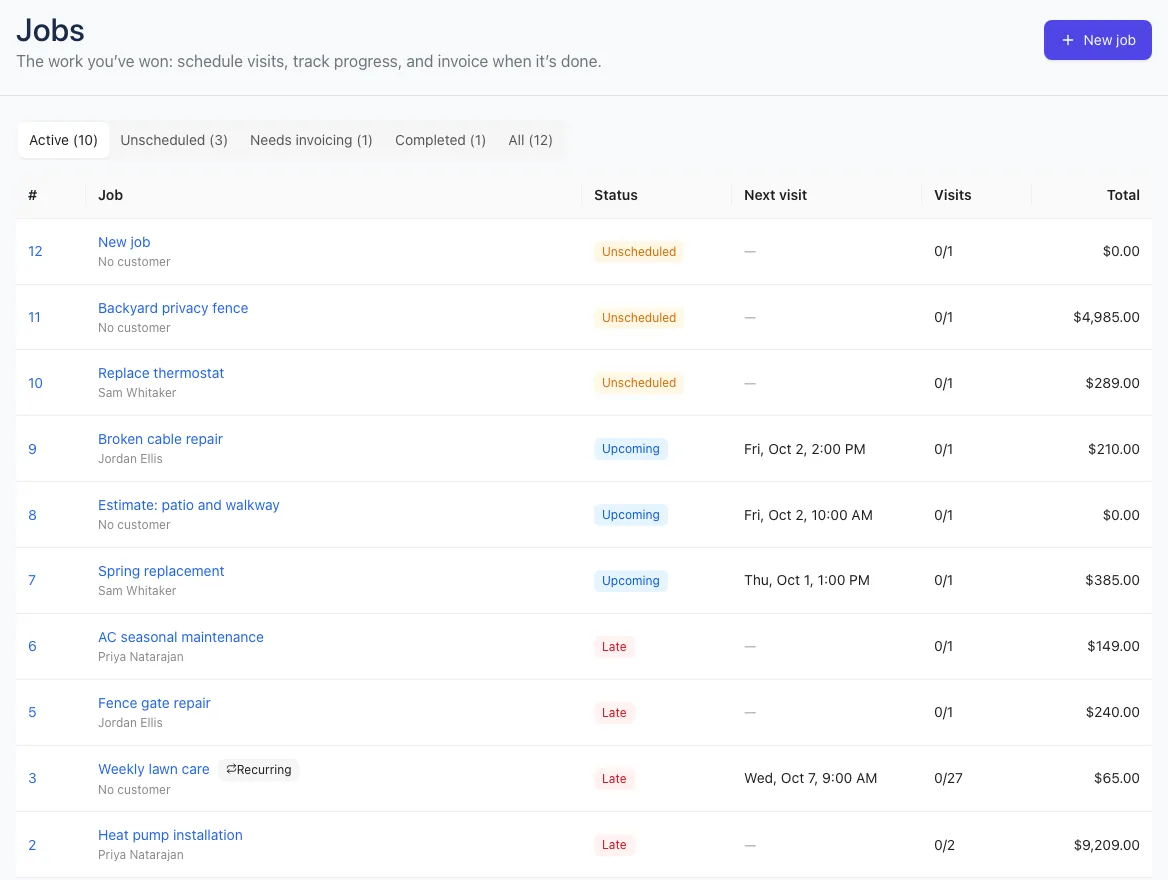
Work → Jobs lists your jobs with their status, next visit, how many visits are done (for example 1/3) and the total. Use the tabs across the top to filter: Active, Unscheduled, Needs invoicing, Completed and All. Each tab shows how many jobs it holds. Recurring jobs carry a Recurring tag.
What's on a job
- Details: Title, Customer, Service address and Instructions for the crew (gate codes, parking, what to bring). If you've set up custom fields for jobs, they show here too.
- Schedule: the visits. See Schedule visits and assign crews.
- Line items: what you're charging, with Tax and the total. Only people who can see prices see these.
- Job costing (Growth): what the job made. See See what a job made.
- Files (Growth): photos and documents for this job. See Files and photos.
- Checklist: steps the crew ticks off on every visit. Click Add step to add one.
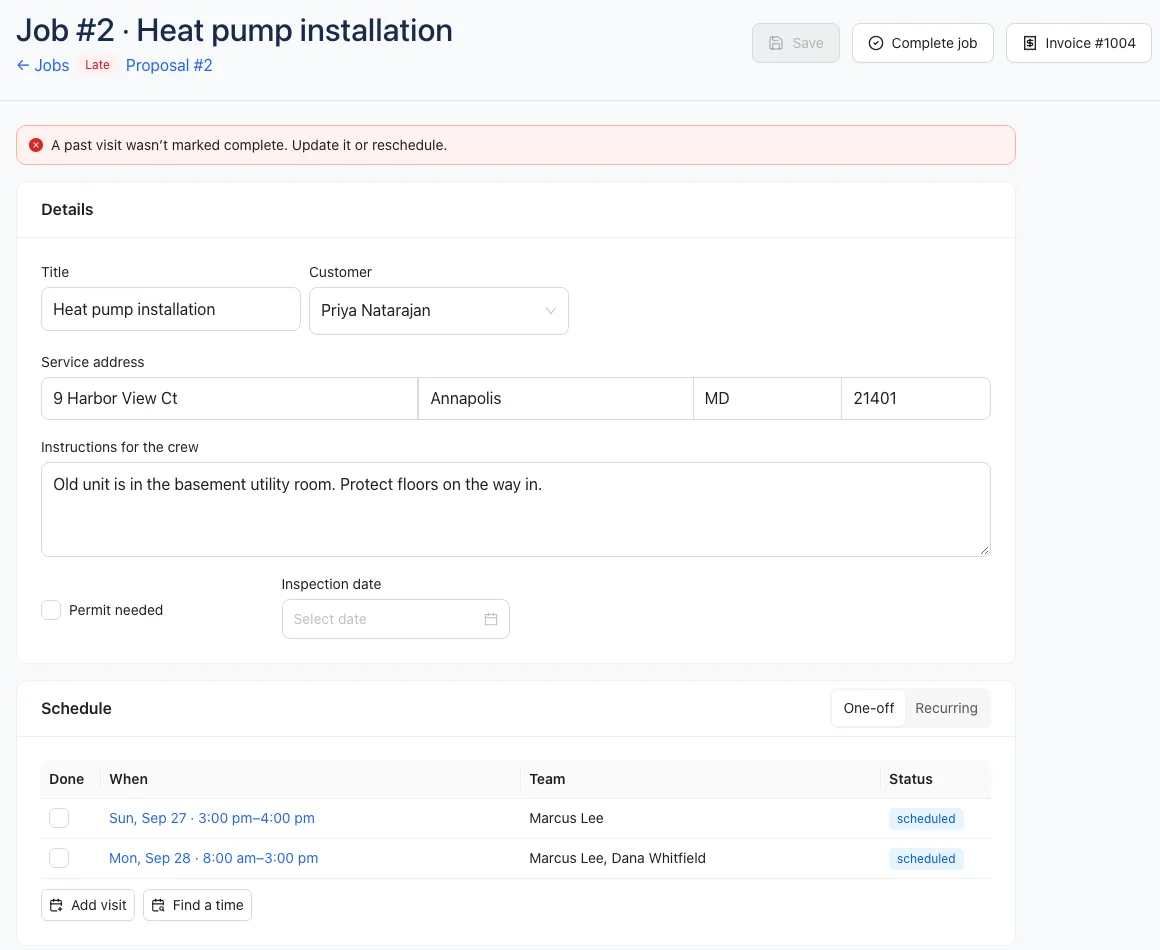
Click Save after changes. An orange Unsaved changes tag reminds you. When the work is done, click Create invoice to bill the job. See Create and send an invoice.
Job statuses
| Status | Meaning |
|---|---|
| Upcoming | Visits are booked ahead. |
| Unscheduled | Nothing is booked yet. |
| Late | A past visit wasn't marked complete. The job page says so in red. |
| Needs invoicing | The work is done but there's no invoice. |
| Completed | Done and invoiced. |
| Archived | Put away. Its remaining visits were canceled. |
Close, archive or delete a job
- Complete job (top of the job) closes it and cancels any remaining visits. Reopen undoes it.
- Archive (bottom of the job) puts it away and cancels its remaining visits. Open an archived job and click Restore to bring it back.
- Delete only shows while no visit is completed and there's no invoice. Otherwise, archive it.
What crew members see
Crew can open the jobs they work on, but the page is view only: "The office manages this job". They don't see line items or prices. They update their own visits on the Schedule or in the app. See Roles and permissions.