Breaks and labeled time
Let your team take breaks on the clock and label their time (on site, travel, shop, training), and choose what's paid and what counts as job labor.
Included on the Growth plan. Compare plans New and rolling out: if you don’t see it yet, ask us to switch it on.
With breaks and labeled time, your team clocks the kind of work they're doing, like On site, Travel or Shop, and can pause for a break without clocking out. You decide which kinds are paid and which count toward a job's labor cost.
Set up your time types
- Open Settings → Time & breaks. (You need a role with Business settings.)
- Under Time types, you start with On site, Travel, Shop, Office and Training.
- Click Add time type to make your own, like "Warranty work". Give it a Name and choose what it Counts as: Job work, Driving or Shop / office / other.
- Switch Paid on if this time is paid, and Job labor (job costing) on if this time on a job should count toward the job's labor cost. Pick a Color for timesheets.
- Click OK.
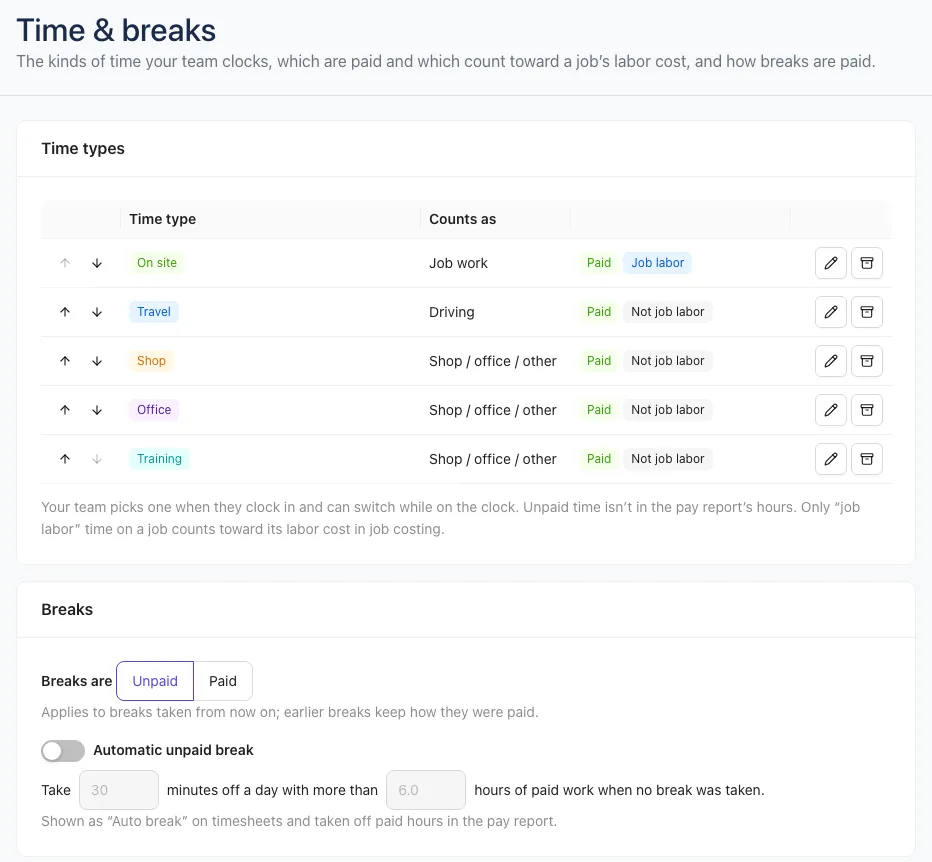
Use the arrows to change the order your team sees. Click the pencil to edit a type, or the archive icon to stop offering it (time already tracked keeps it; turn on Show archived and click Restore to bring one back). You always keep at least one type.
Choose how breaks are paid
Under Breaks:
- Breaks are Unpaid or Paid. This applies to breaks taken from now on; earlier breaks keep how they were paid.
- Automatic unpaid break: switch it on to take a set number of minutes (30 to start) off any day with more than a set number of hours of paid work (6 to start) when no break was taken. It shows as Auto break on timesheets and comes off paid hours in the pay report.
Changes here save straight away.
Clock in, switch and take a break
On Work → Timesheets:
- Pick a time type and, if it's for one, a job. Click Clock in.
- To change what you're doing without clocking out, pick another type in Switch type. Your time is split at that moment, on the same job.
- Click Start break to pause. The timer shows On break.
- Click End break to go back to what you were doing before.
- Click Clock out at the end of the day.
The same works in the iPhone app.
What changes on timesheets
- Each entry shows its time type, or Break / Paid break.
- The week shows Hours worked, Paid hours, Breaks and any Auto breaks, plus a By type line with the hours for each type.
- The pay report counts only paid types; unpaid types, unpaid breaks and automatic breaks are left out. Its CSV adds columns for paid breaks, auto breaks and unpaid time.
- Job costing counts only Job labor time as labor. Other time on the job (like travel) is listed separately and not costed.