Approve timesheets and run the pay report
Check each person's week, approve it so it locks, and export hours, overtime and gross pay for payroll.
Included on the Growth plan. Compare plans
At the end of each week, check everyone's time, approve it, and send the hours to your payroll service. The pay report works out regular hours, overtime and gross pay for you.
Before you start
Set each person's Pay rate in Settings → Team & roles (click the pencil next to them). If someone has no pay rate, the report uses their Hourly cost instead. See Add and remove people.
Approve a week
- Open Work → Timesheets.
- Use the arrows or This week to pick the week (Monday to Sunday).
- Check each person's entries in the list. Fix anything wrong first. See Time tracking and timesheets.
- In the Pay report card, click Approve next to each person.
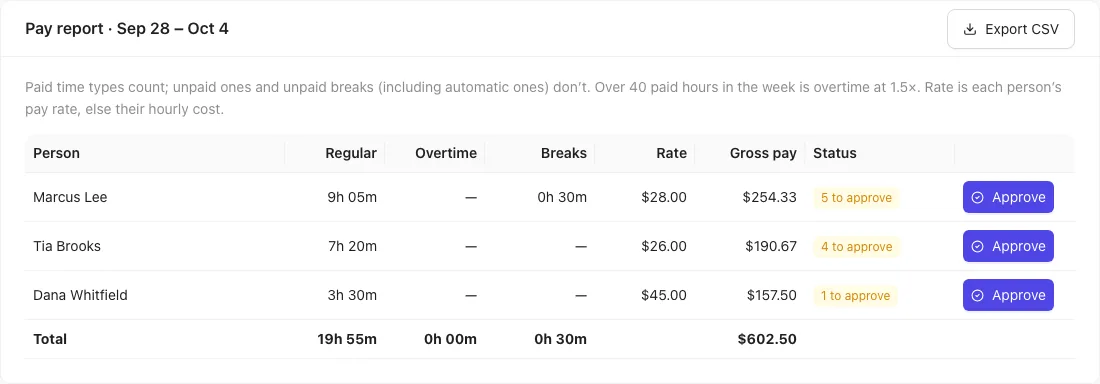
Approved time locks: crew can't change or delete it, and a lock shows next to the hours. The Status column shows Approved, how many entries are left to approve, or On the clock if they're still clocked in.
Need to change an approved week? Click Reopen next to the person, make the change, then approve it again.
Export for payroll
Click Export CSV. You get a spreadsheet for the week with each person's name, regular hours, overtime hours, break hours, rate, gross pay and whether the week is approved. Upload or copy it into your payroll service.
How pay is worked out
- Job, driving and shop time are paid. Breaks aren't (unless you've made breaks paid; see Breaks and labeled time).
- Over 40 paid hours in a week is overtime at 1.5×.
- The rate is each person's Pay rate, or their Hourly cost if no pay rate is set. A rate that isn't set shows not set.
In the app
The pay report is at the bottom of More → Timesheets.