Files and photos
One place for every photo and document across your customers, jobs and quotes, plus files on each job and customer.
Included on the Growth plan. Compare plans New and rolling out: if you don’t see it yet, ask us to switch it on.
The Files library collects every photo and document in your business: files you upload, photos your crew takes on jobs and visits, quote photos and expense receipts. Each job and customer also has its own Files section.
Open the library
Go to Work → Files. The top shows the Storage used, how many Documents you have, and how much space photos, logos and website images take.
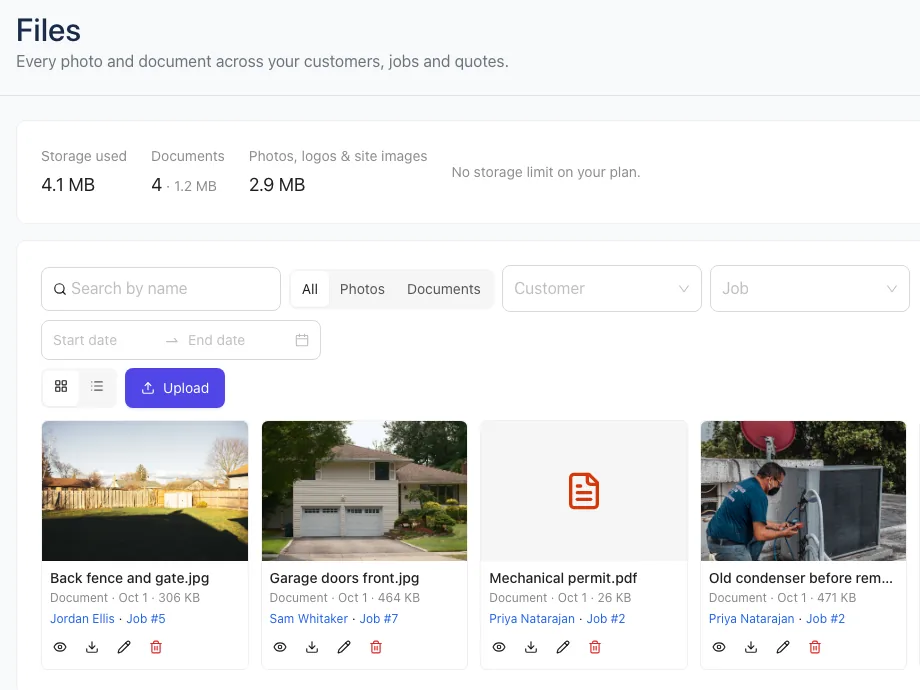
Each file shows its name, what it is (Document, Job photo, Visit photo, Quote photo or Receipt), the date, its size and what it's linked to. Click a customer, job or quote link to open it.
Find a file
- Type in Search by name.
- Switch between All, Photos and Documents.
- Pick a Customer or Job, or a date range.
- Switch between grid and list view with the two buttons next to Upload.
The library shows the newest files first. If there are a lot, it says how many it's showing; narrow it down with the filters.
Upload a file
- Click Upload (or drop a file on the page).
- Choose where it goes: Library only, or attach it to a Customer, Job or Quote and pick which one.
- Click Upload.
You can upload PDFs, photos (PNG, JPG, WebP, GIF, HEIC), Word, Excel, PowerPoint and text files, up to 15 MB each.
Files on a job or customer
Open a job and scroll to the Files card, or open a customer and click the Files tab. You see just that job's or customer's files, including photos your crew added in the app. Click Upload or drop files there; they're attached to that job or customer automatically.
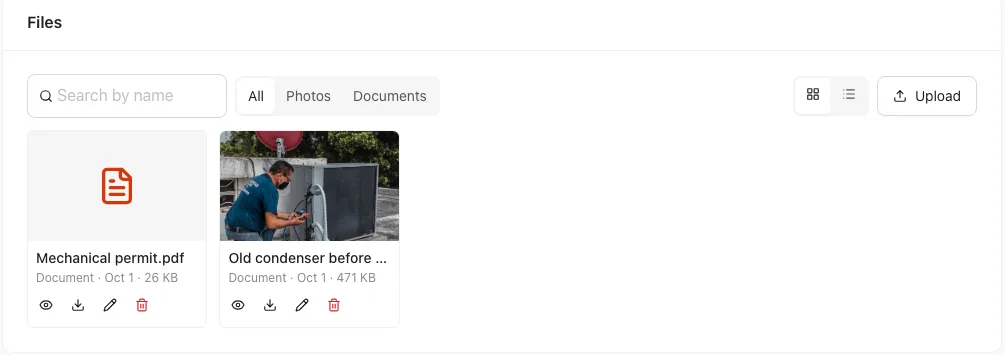
Preview, download, rename or delete
Use the icons under each file:
- The eye opens a Preview (photos and PDFs). Other files can be downloaded.
- The arrow Downloads it.
- The pencil Renames a document, or sets a photo's caption.
- The trash can Deletes it. For a receipt, it removes the receipt from its expense.
Only the person who uploaded a file, or someone with Business settings, can rename or delete it. Photos on a signed quote are part of the agreement, so they show a lock and can't be changed or deleted.
Who sees what
Uploaded documents are private to your team; customers don't see them. Quote photos and files on quotes need the Quotes permission, and crew see only their own receipts. See Roles and permissions.