Your schedule in the app
See the week's visits day by day, switch between your visits and the whole team's, and open any visit.
The Schedule tab shows one week at a time, starting Monday.
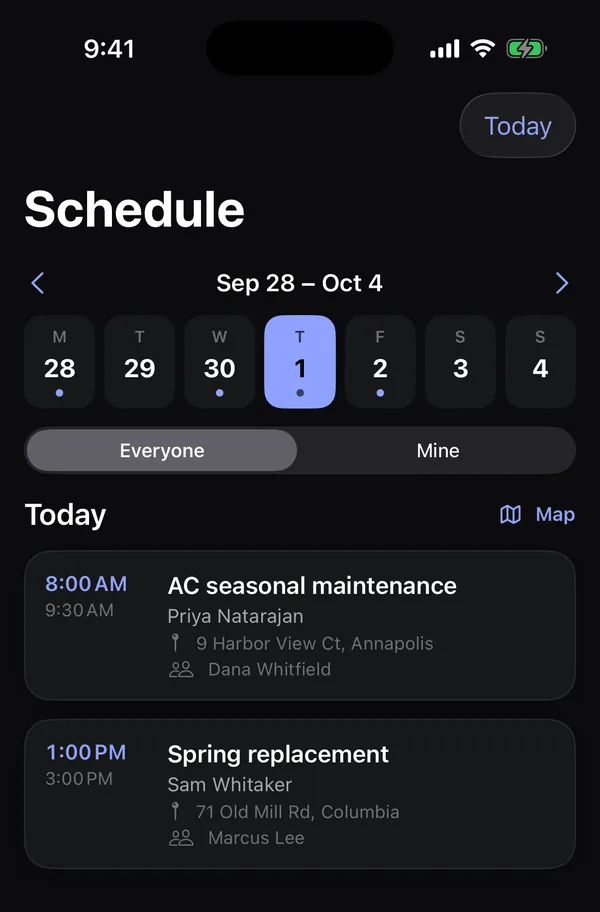
Move around the week
- Tap a day in the strip to see its visits. A dot under a day means something is booked.
- Use the arrows beside the dates to go to the previous or next week.
- Tap Today at the top to jump back to today.
Whose visits you see
Crew see only their own visits. Owners and office staff see Everyone and can switch to Mine. With Everyone, each visit shows who's on it.
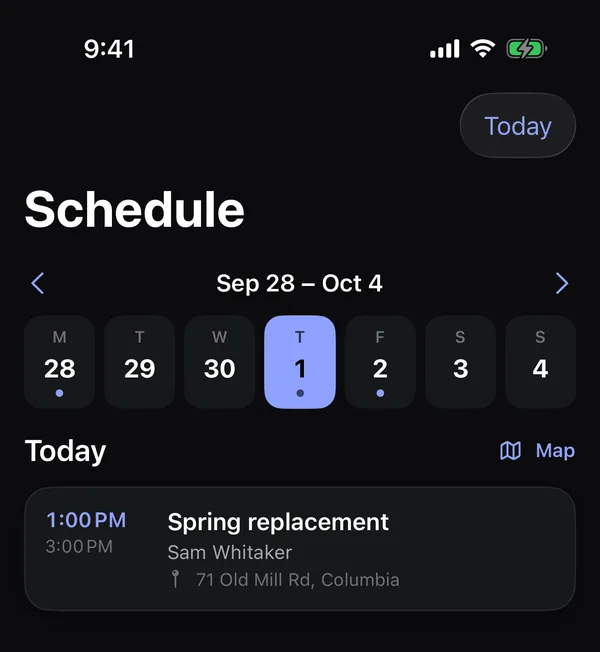
Open a visit
Tap a visit to open it: directions, the checklist, notes, photos and Mark visit complete. See Work a visit. A visit marked Assessment is a visit to look at a new request, and opens that request.
See the day on a map
Tap Map next to the day's heading. See See your route on a map.
Changing the schedule
In the app, owners and office staff can add a visit to a job (open the job, tap …, then Add visit). See Jobs in the app. Moving, reassigning and deleting visits is done on the web. See Schedule visits and assign crews.