Customers in the app
Search your customers, call or text them, see their work and what they owe, add new ones and fill in their details.
The Customers tab lists everyone you work for. Everyone on the team can see it.
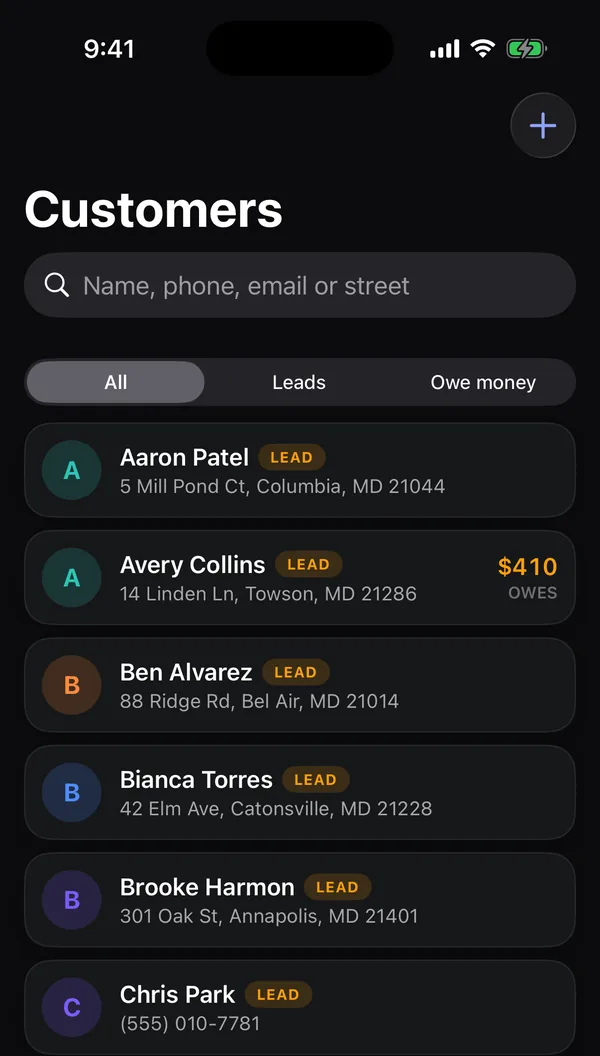
Find a customer
Type in the search box: a name, phone number, email or street. People who see prices can also switch between All, Leads and Owe money. A Lead badge means they haven't hired you yet; an amount in orange is what they owe.
A customer's page
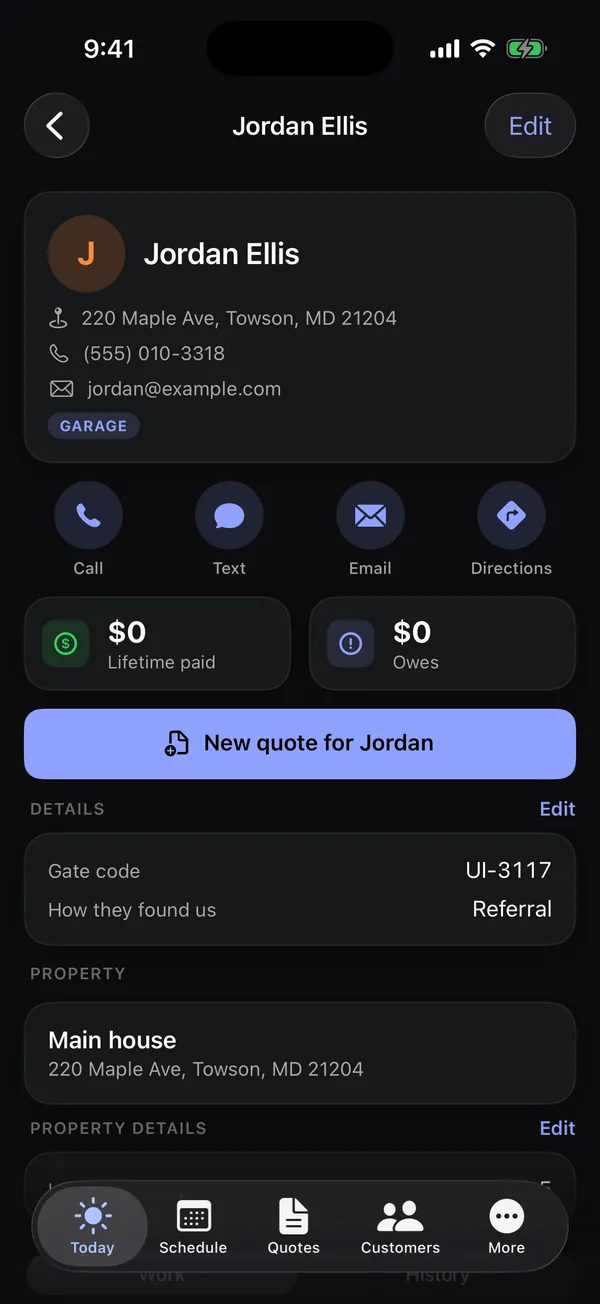
- Their address, phone, email and tags.
- Call, Text, Email and Directions.
- If you see prices: Lifetime paid and Owes.
- New quote for … starts a quote for them (if you can work on quotes).
- Notes, like gate codes or pets.
- Details: your business's own fields (Pro and Growth). See below.
- Property or Properties: each service address, with its own Property details.
- Work: their jobs, quotes, invoices and requests. Tap one to open it. Crew don't see quotes or invoices.
- History: a timeline of what's happened: requests, quotes, signatures, jobs, visits, invoices, payments and emails.
Add a customer
- Tap +.
- Fill in Contact: name, company, phone and email.
- Fill in the Service address. The street field suggests addresses as you type; pick one to fill in the city, state and ZIP.
- Add Notes if you like, then tap Save.
To change a customer, open them and tap Edit.
Details (custom fields)
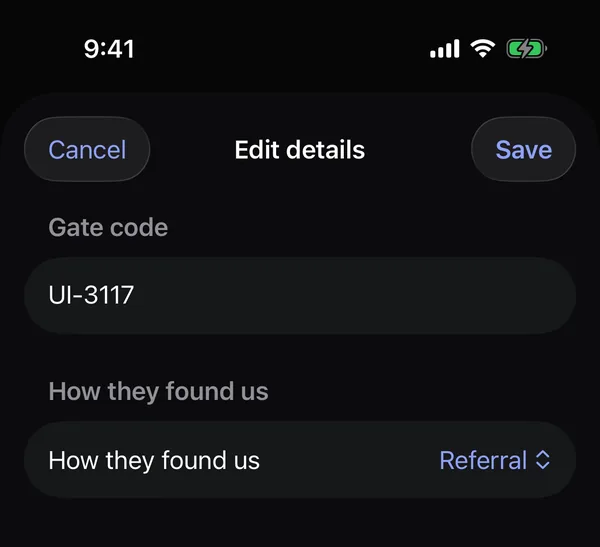
The Details and Property details cards show the fields your business set up on the web, like a gate code or how they found you.
- Tap Edit on the card.
- Fill in the fields. Fields marked * are required.
- Tap Save.
Custom fields are set up on the web. Deleting customers is done on the web too. See Manage customers.