Schedule your first job
When your customer signs, turn the quote into a job, book the visit on your schedule and assign who's going.
A signed quote is work you've won. Turn it into a job so it lands on your schedule and your crew knows where to go.
Create the job
- Open Work → Proposals and click the signed quote. Its status shows Signed.
- Click Create job at the top.
- The job opens with the customer, their address and the items your customer signed for.
The job starts with one visit that isn't booked yet. Once a job exists, the quote's button reads Job # and takes you to it.
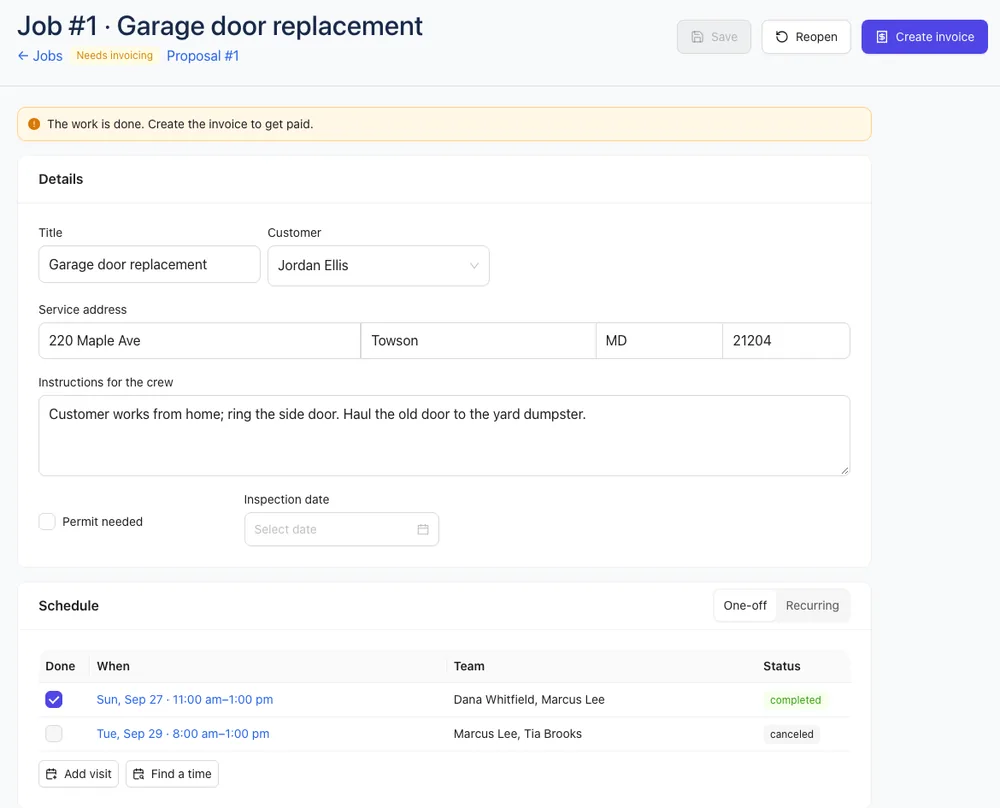
Add instructions for the crew
In Details, check the Service address and fill in Instructions for the crew: gate codes, parking, what to bring. Click Save.
Book the visit
- Click Schedule in the menu.
- Find the job in the Unscheduled list beside the calendar.
- Drag it onto the day and time you want, or click it and pick a time under When.
- Under Team, pick who's going. You can pick more than one person.
- Click Save.
You can also book from the job itself: click the visit in its Schedule card, or Add visit for more.
On the day
Your crew sees the visit in the app and on the web. They clock in, tick the checklist, add photos and click Mark complete when it's done. When the last visit is complete, the job shows Needs invoicing.
Go further
- Everything on a job: Turn a signed quote into a job
- The calendar, drag and drop, and who sees what: Schedule visits and assign crews
- Weekly or monthly work like lawn care: Set up recurring jobs
- Clocking in and timesheets: Time tracking and timesheets
Next step: Send your first invoice.